
A website can look flawless and still fail as soon as someone stops using a mouse. When I assess how to test keyboard navigation for website accessibility, I apply one strict rule: every meaningful action must work through a keyboard interface.
WCAG 2.1.1 requires keyboard operability, while WCAG 2.1.2 prevents users from becoming trapped inside a component. These requirements support people with motor or visual disabilities, temporary injuries, and alternative input devices.
Why Manual Keyboard Testing Matters
Automated tools can detect some missing labels, roles, and focus problems. They cannot judge whether an entire journey feels predictable. A person must confirm that controls work, focus moves logically, and users can recover after closing a dialog or submitting a form.
I use three separate passes. First, I test the page-level route. Second, I test complex components. Third, I check where focus lands after each action.
This approach gives how to test keyboard navigation for website accessibility a repeatable structure. It prevents testers from pressing Tab randomly and overlooking serious failures.
The method also supports how to improve website usability for first-time visitors, because clear controls and predictable movement help new users understand a page faster.
Prepare the Test
Configure the Browser
Put the mouse aside, disable the trackpad, or unplug both. Refresh the page and begin at the top.
Anyone learning how to test keyboard navigation for website accessibility should test in the browsers their audience actually uses. Browser settings can affect which elements receive focus.
In Safari for Mac, open Safari Settings, choose Advanced, and enable “Press Tab to highlight each item on a web page.” Apple states that this option lets Tab highlight links and buttons without mouse input.
Use the Right Keys
| Key | Main purpose | Expected result |
| Tab | Move forward | Focus reaches the next interactive element |
| Shift + Tab | Move backward | Focus reverses through the page logically |
| Enter | Activate | Links and standard buttons work |
| Spacebar | Toggle or activate | Checkboxes and supported controls respond |
| Arrow keys | Move within widgets | Menus, tabs, sliders, and radio groups respond |
| Escape | Dismiss | Modals and expanded menus close when appropriate |
Knowing how to test keyboard navigation for website accessibility means checking both movement and operation. Reaching a button is not enough if Enter or the Spacebar does nothing.
How To Test Keyboard Navigation For Website Accessibility
1. Check the Skip Link
Reload the page and press Tab once. A visible “Skip to main content” link should appear before repeated navigation.
Press Enter and confirm that focus moves to the main content region. The link should bypass the header, primary menu, and other repeated elements.
A practical process for how to test keyboard navigation for website accessibility starts here because the first Tab press reveals how the page treats keyboard users.
Skip links matter most on pages with large headers, mega menus, or long navigation lists. Without one, users may need dozens of keystrokes before reaching the page’s actual content.
2. Follow the Focus Indicator

Tab through the full page and watch the focus indicator. Every link, button, input, select field, and custom control needs a visible focused state.
WCAG 2.4.7 requires visible keyboard focus. WCAG 2.4.11 also requires the focused item to remain at least partly visible instead of hiding behind sticky headers, banners, or overlays.
I flag outlines that disappear against the background. I also flag focus states that rely on a barely noticeable color change.
Pay particular attention to sticky navigation, cookie notices, chat widgets, and fixed promotional bars. These elements can cover the active control even when the focus indicator technically exists.
Removing the browser’s default outline without adding a clear replacement often causes this problem.
3. Verify the Tab Order
Focus should normally follow the visual reading order. On an English-language page, that usually means left to right and top to bottom.
Chrome recommends comparing the focus sequence with the DOM order and the page’s visual reading order.
Watch for focus jumping unexpectedly into:
- The footer
- Hidden mobile navigation
- Offscreen carousel slides
- Collapsed accordions
- Invisible form fields
- Controls that appear much later visually
My practical test is simple: I should usually be able to predict where the next Tab press will land. If focus jumps somewhere surprising, I inspect the DOM order and any tabindex values.
Positive tabindex values often create confusing routes. Native HTML controls placed in a clean DOM order usually produce more reliable navigation.
4. Operate Every Control
Press Enter or Spacebar on every interactive element. Test navigation links, accordions, search controls, form fields, checkboxes, radio buttons, date pickers, carousels, file uploads, and validation messages.
Custom controls need extra attention. A clickable div does not gain keyboard behavior automatically.
Chrome recommends using semantic HTML where possible. It also recommends manually checking custom controls for focusability, roles, labels, and states.
This step separates true keyboard access from a page that merely permits tabbing. An element can receive focus and still fail if it cannot perform its intended action.
When testing forms, confirm that users can select options, correct errors, and submit without touching the mouse.
5. Test Modals and Complex Widgets
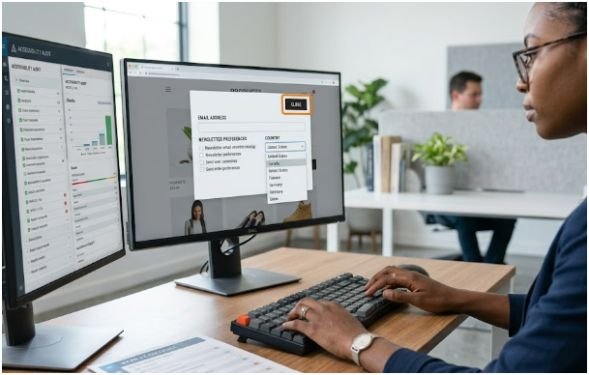
Open every modal, dropdown, popover, autocomplete, tooltip, and expandable menu. Confirm that focus moves into the component when it opens.
Then use Tab, arrow keys, Enter, Spacebar, and Escape as appropriate.
A modal may keep focus inside while open, but users need a keyboard-accessible way to close it. W3C’s modal dialog pattern also expects focus to return logically after closure, often to the control that opened the dialog.
Menus, tablists, radio groups, and toolbars may use arrow keys for internal movement. Tab often moves into or out of the whole widget instead of moving between every internal item.
Test each component against its expected keyboard pattern. Do not assume that every widget should behave like a group of standard links.
6. Check Reverse Navigation and Focus Recovery
Repeat important routes with Shift + Tab. Some interfaces work properly moving forward but fail when users move backward.
Next, close a modal, submit a form, trigger an error, delete an item, or change the page content. Focus should not disappear or fall back to the document body.
When new content replaces the current view, deliberate focus management may be needed. Chrome recommends moving focus to a useful heading or relevant new element when fresh content appears.
Focus recovery is one of the most overlooked parts of how to test keyboard navigation for website accessibility. It often exposes problems that a basic forward-only test misses.
Add DevTools, Lighthouse, and Playwright

Automation strengthens how to test keyboard navigation for website accessibility, but it should support manual testing rather than replace it.
Use Chrome DevTools’ Accessibility pane to inspect each control’s role, accessible name, state, and focusability. A visual button should be exposed as a button rather than a generic element.
Check whether expanded controls communicate their state. Confirm that disabled elements, selected tabs, checked boxes, and open menus expose accurate information.
Run Lighthouse as a supporting audit, not as final proof. Chrome describes its accessibility score as a weighted average of automated checks. A high score cannot confirm that every keyboard journey works.
For regression testing, Playwright can send Tab, Shift + Tab, Enter, Escape, and arrow-key input. It can also verify which element holds focus after each action. Playwright’s official documentation supports keyboard events and accessibility testing integrations.
I automate stable, high-risk journeys such as:
- Account sign-in
- Checkout
- Form submission
- Modal confirmation
- Navigation menus
- Error recovery
I still complete a manual keyboard pass before major releases.
Record and Prioritize Failures
Documentation is essential when a team standardizes how to test keyboard navigation for website accessibility.
A useful issue report includes the page, starting point, exact keystrokes, expected result, actual result, browser, and severity.
For example:
“Press Tab seven times, open the Size menu with Enter, and then press Escape. Expected: the menu closes and focus returns to Size. Actual: focus moves to the page body.”
That report gives developers a repeatable path. A vague instruction such as “fix keyboard accessibility” does not.
Fix keyboard traps and unreachable critical actions first. Address invisible focus and broken form controls next. Sequence problems can follow after users can complete every essential task.
I also retest the entire journey after a fix. Changing focus behavior in one component can create a new problem somewhere else.
Your Mouse Is Officially Off Duty
The fastest useful audit is brutally simple: remove the mouse and complete the page’s main task.
Repeat the route backward. Open every complex component. Trigger an error. Close every overlay. Watch where focus lands after each action.
Make how to test keyboard navigation for website accessibility part of component reviews, quality assurance, and release checks. Start with your highest-traffic page today.
If the keyboard route feels unpredictable to you, it is already frustrating users.
Frequently Asked Questions
1. Can Lighthouse fully test keyboard accessibility?
No. It can find supporting issues, but logical flow, keyboard traps, and control behavior still require manual testing.
2. How to test keyboard navigation for website accessibility without a mouse?
Use Tab, Shift + Tab, Enter, Spacebar, arrow keys, and Escape to reach and operate every interactive element.
3. Which WCAG criteria cover keyboard navigation?
Start with WCAG 2.1.1, 2.1.2, 2.4.3, 2.4.7, and 2.4.11.
4. How often should keyboard navigation be tested?
Test during component development, before releases, and after changes to forms, navigation, dialogs, or page layouts.