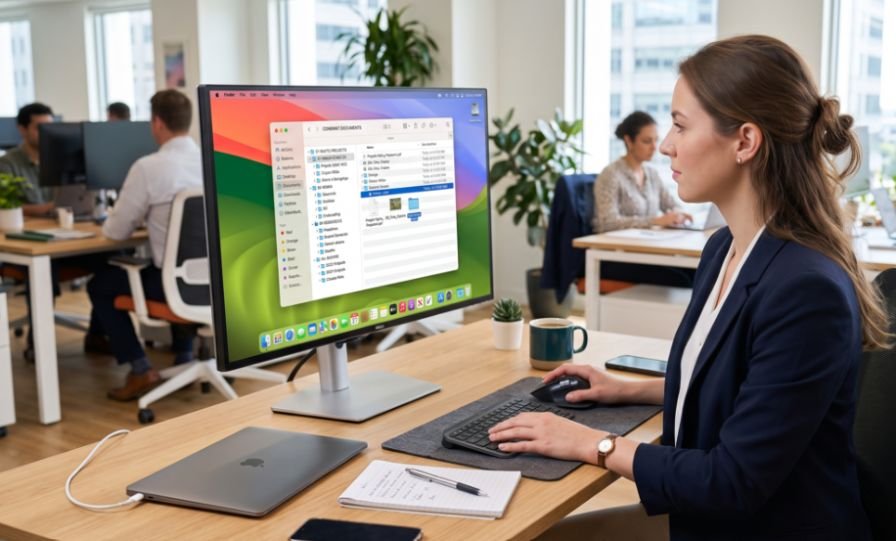
A file system should save time, not create another task. I learned that how to organize digital files and folders for work matters most when deadlines are tight and several people need the same document.
My system uses a few top-level folders, predictable names, one master copy, and short cleanup routines. The goal is clear: I should locate any file within ten seconds.
Quick Digital File Organization Plan
| Area | Practical rule | Example |
| Main folders | Keep 5 to 8 broad categories | 02_Active_Projects |
| Folder depth | Aim for 3 levels; never exceed 5 | Project → Drafts → Final |
| File names | Add date, subject, status, and version | 2026-07-21_Budget_Draft_v2.xlsx |
| Duplicate control | Keep one master file | Add a shortcut elsewhere |
| Maintenance | Clear daily, audit weekly, archive yearly | Friday review |
| Protection | Back up critical work | Cloud plus separate backup |
Start With a Small Top-Level Folder Structure
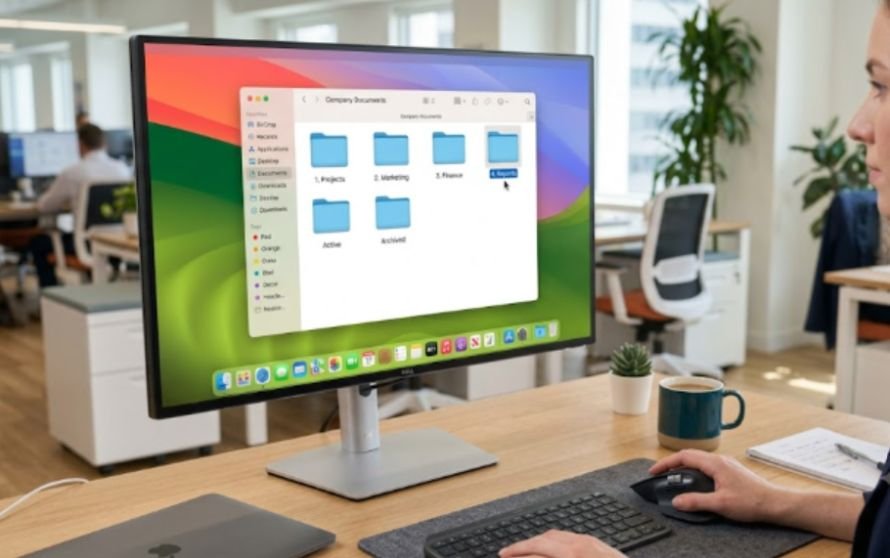
When I decide how to organize digital files and folders for work, I start with the fewest categories that cover almost everything. Too many main folders slow down every save.
My practical structure is:
- 01_Inbox_Temp
- 02_Active_Projects
- 03_Operations_Admin
- 04_Reference_Resources
- 99_Archive
The prefixes hold folders in a fixed order. The inbox stores unprocessed downloads. Active projects contain current deliverables. Administration covers invoices, HR files, and policies. Reference resources hold templates and brand assets. The archive stores completed work.
The National Archives recommends defined folder structures, naming conventions, staff guidance, and periodic cleanup for shared drives. These principles also suit small teams.
Keep the Folder Hierarchy Shallow
Deep folder trees look tidy until retrieval becomes slow. I aim for three levels and treat five as the maximum.
A project might use:
02_Active_Projects → Project_Apollo → 01_Research
02_Active_Projects → Project_Apollo → 02_Drafts
02_Active_Projects → Project_Apollo → 03_Final
This structure shows the project and work stage without creating a maze.
Use My Ten-Second Retrieval Test
I ask a coworker to find one document without extra clues. If it takes longer than ten seconds, I revise the folder name, file name, or both.
Vague folders such as Misc, Documents, and Old Stuff usually fail. They describe nothing and grow without limits. This simple test is my original way to judge how to organize digital files and folders for work based on retrieval, not appearance.
Build File Names That Explain Themselves
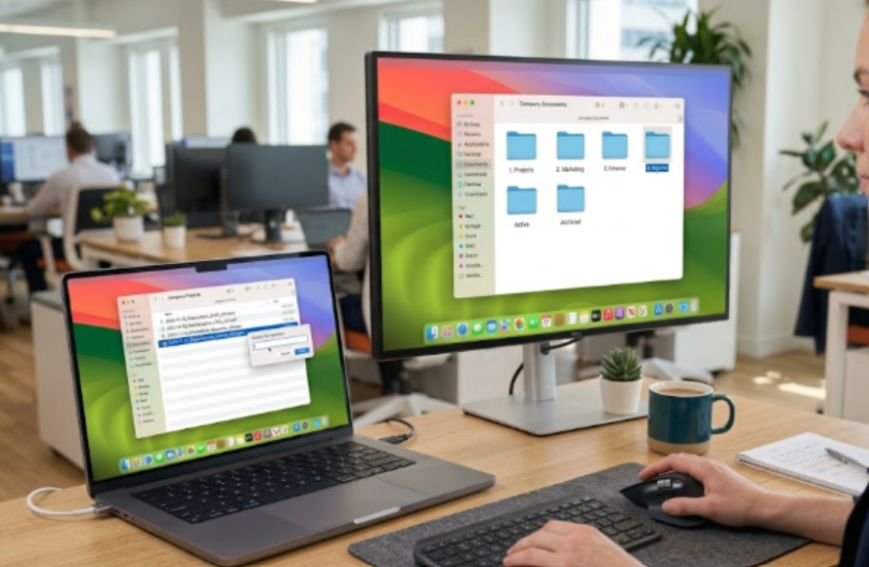
A naming system is central to how to organize digital files and folders for work. I name files as though I will forget their purpose tomorrow.
My standard format is:
YYYY-MM-DD_Subject_Status_Version.extension
For example:
2026-07-21_MarketingStrategy_Draft_v2.docx
The name shows the date, topic, status, and revision before I open it.
Use Dates and Versions Consistently
I use YYYY-MM-DD because it sorts dates chronologically. I also keep each naming element in the same position.
The National Archives recommends platform-independent names and consistent placement for elements such as project names, dates, and versions.
I avoid final2 and really-final. I use Draft_v1, Draft_v2, Approved, or Published. A file marked FINAL should represent an approved output.
Avoid Problem Characters
I use underscores or hyphens instead of decorative symbols. Certain characters can prevent OneDrive or SharePoint syncing.
I also keep folder names concise because every folder adds characters to the full file path.
Keep One Master File and Use Shortcuts
Duplicate files create conflicting versions. I may edit one copy while a coworker updates another.
When applying how to organize digital files and folders for work, I store the master document in one approved location. Other folders receive shortcuts.
Google Drive says shortcuts link to original files or folders. This helps teams organize an item in several locations without creating another master copy. OneDrive also supports shortcuts to shared folders.
A shortcut does not grant permission. Users still need access to the original file.
Separate Active Work From Records and Resources
Current tasks should not compete with completed records. Inside each project, I separate research, drafts, approvals, assets, and final deliverables.
For reusable documents, I keep editable templates in the reference folder, including resources that explain how to create a fillable PDF form for free for approvals, intake forms, and internal requests.
After completion, I move the whole project into 99_Archive. Templates, logos, and policies stay in 04_Reference_Resources, with shortcuts placed inside relevant projects.
That separation makes how to organize digital files and folders for work easier to maintain because each item has one role and one master location.
How To Organize Digital Files And Folders For Work With a Maintenance Routine
A strong structure fails when loose files pile up. I use three short routines.
Daily Cleanup
I process 01_Inbox_Temp and Downloads. I delete junk, rename useful files, and move them to permanent locations.
I avoid leaving downloaded attachments on my desktop. Those files usually lose their context and become difficult to identify later.
Weekly Audit
Every Friday, I spend 15 minutes checking active folders for unclear names, duplicate drafts, and completed work.
I also confirm that approved files sit inside the final folder. Drafts should not remain beside approved deliverables.
The National Archives includes periodic reviews and annual cleanup among recommended shared-drive maintenance practices.
Annual Archive Review
At year-end, I archive completed projects and remove temporary material that no longer has value.
I do not delete tax, HR, legal, or client records without checking company policy and retention requirements. Some records may need to remain available for audits, contracts, or regulatory purposes.
Protect Organized Files With Backups
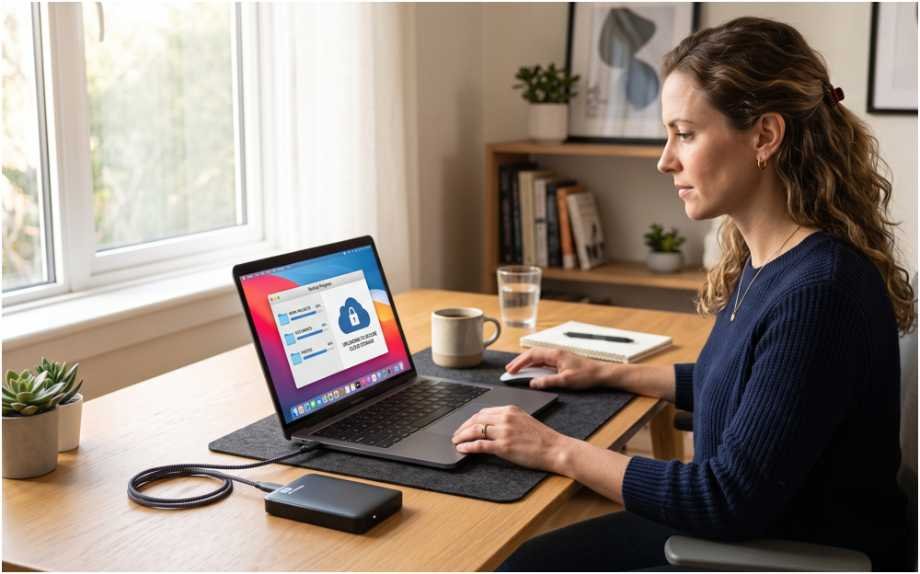
Organization does not replace backup. A neat folder system can still disappear after hardware failure, accidental deletion, malware, or account loss.
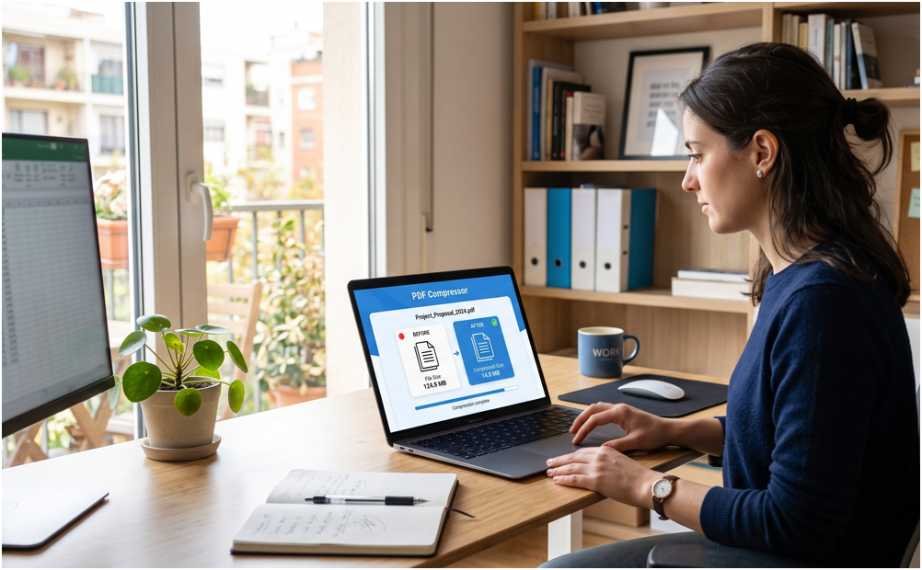
Before backing up document-heavy folders, I also review oversized PDFs and learn how to compress large PDF files without losing quality so they use less storage while remaining clear and professional.
CISA describes the 3-2-1 approach as keeping three copies of important data on two storage types, with one copy separated from the main environment. CISA also recommends offline, encrypted backups and regular testing.
I also restrict editing rights. People who only need final documents should not be able to rename or delete master folders.
For shared projects, I assign one person to maintain the main structure. Team members can suggest changes, but uncontrolled restructuring creates confusion.
A Worked Marketing Project Example
For one client campaign, I might create:
01_Research
02_Content_Drafts
03_Assets
04_Approvals
05_Final
The approved plan becomes:
2026-07-21_RiverCampaignPlan_Approved_v1.docx
The invoice belongs in 03_Operations_Admin, not the content folder. I add a shortcut inside the project when the account manager needs fast access.
Once the campaign ends, I move the complete project folder into 99_Archive. I keep its internal structure unchanged so approvals, assets, and final deliverables remain connected.
This shows how to organize digital files and folders for work without adding needless complexity.
Frequently Asked Questions
1. How to organize digital files and folders for work quickly?
Create folders for active projects, administration, references, temporary files, and archives before sorting individual documents.
2. How should I name work files for easy searching?
Use a consistent date, subject, status, and version pattern, such as 2026-07-21_Report_Draft_v2.docx.
3. How many folder levels should a work system have?
Aim for three levels and avoid exceeding five unless your records policy requires more detail.
4. How often should I organize digital work files?
Clear temporary files daily, audit active folders weekly, and review archives annually.
Your Desktop Is Not a Filing Cabinet
Learning how to organize digital files and folders for work becomes easier when the system removes choices. Use clear main folders, predictable names, shallow paths, shortcuts, and one master copy.
Do not spend an entire day reorganizing everything. Start with one messy project. Rename its files, reduce its folder depth, and run the ten-second retrieval test.
If the final document appears instantly, your system is working. If not, stop decorating folders and fix the path that slowed you down.