
Browsing the web should feel smooth, effortless, and entirely under your control. Learning how to block ads on chrome empowers you to eliminate annoying pop-ups, reduce distractions, and speed up page loading times across all your desktop devices. Modern websites often flood your screen with flashing banners, auto-playing video promotions, and sudden overlays. Getting rid of this digital clutter takes less than two minutes when you use the proper browser settings and tools.
The most effective way to block ads in Chrome is to install a trusted third-party extension like uBlock Origin Lite or AdBlock. Alternatively, you can block annoying pop-ups and intrusive ads natively through Chrome’s built-in settings.
Key Takeaways
- Chrome includes built-in privacy toggles that instantly block intrusive pop-ups and auto-redirects.
- Browser extensions give complete control over stubborn sidebar banners and pre-roll video ads.
- Network-level DNS tricks allow ad blocking on Android devices without root access.
- Chrome’s Manifest V3 framework requires using updated tools like uBlock Origin Lite or Total Adblock.
- Whitelisting safe web apps protects essential online services while keeping intrusive ads away.
Unfiltered Ads Drain Your Productivity & Bandwidth
Ignoring persistent web advertisements impacts far more than just your visual comfort while reading articles online. Unchecked ads constantly consume background data, drain your device battery, and significantly slow down your internet connection. Learning how to block ads on chrome restores your digital sanity, protects your personal privacy, and keeps your browser running at peak performance every single day.
Every single promotional banner, video script, and tracking pixel requires extra processing power from your device. Blocking these elements reduces page sizes, saves mobile bandwidth, and prevents aggressive tracking networks from building behavioral profiles based on your personal browsing habits.
Before changing browser extensions or privacy settings, it is also smart to understand how to back up computer files to cloud storage so important documents and settings remain protected if anything goes wrong.
Method 1: Install a Free Ad Blocker (Most Effective)

Installing a dedicated browser extension provides the strongest line of defense against stubborn promotional scripts. Third-party content blockers scan web pages in real time to filter out intrusive banners, pre-roll video ads, and malicious redirect scripts before they even appear on your screen.
Extension compatibility, browser performance, and security permissions often depend on how to choose a technology stack for web application development, especially when tools must work reliably with modern browser APIs and changing extension frameworks.
Step 1: Open Chrome Web Store
Open Chrome and go to the Chrome Web Store Extensions. You can quickly reach this page by typing the store address directly into your URL bar or by clicking the puzzle piece icon in your toolbar and selecting the option to manage extensions.
Step 2: Search for Trusted Extensions
Search for uBlock Origin Lite or AdBlock in the search bar. Make sure to review the official developer name, user ratings, and extension permissions to verify that you are downloading the genuine tool rather than an unverified copy.
Step 3: Add the Extension to Chrome
Click the extension, then select Add to Chrome. Your browser will prompt you to review the requested permissions needed to filter network requests and block unwanted pop-up windows.
Step 4: Confirm and Activate Protection
Confirm by clicking Add extension. The ad blocker will automatically start blocking ads on sites and videos without requiring any complex setup. You can pin the extension icon next to your address bar for quick access to your blocking statistics and quick custom settings.
Method 2: Use Chrome’s Built-In Ad and Pop-up Blocker (Basic)

If you do not want to install an extension, you can use Chrome’s default settings to stop redirects and intrusive ads. Google Chrome contains built-in security controls that natively restrict deceptive page overlays, misleading links, and aggressive pop-ups right out of the box.
Step 1: Access Browser Settings
In the top-right corner of Chrome, click the Three Dots menu and select Settings. This opens your central configuration dashboard where you can manage your browser security, site permissions, and profile preferences.
Step 2: Navigate to Site Settings
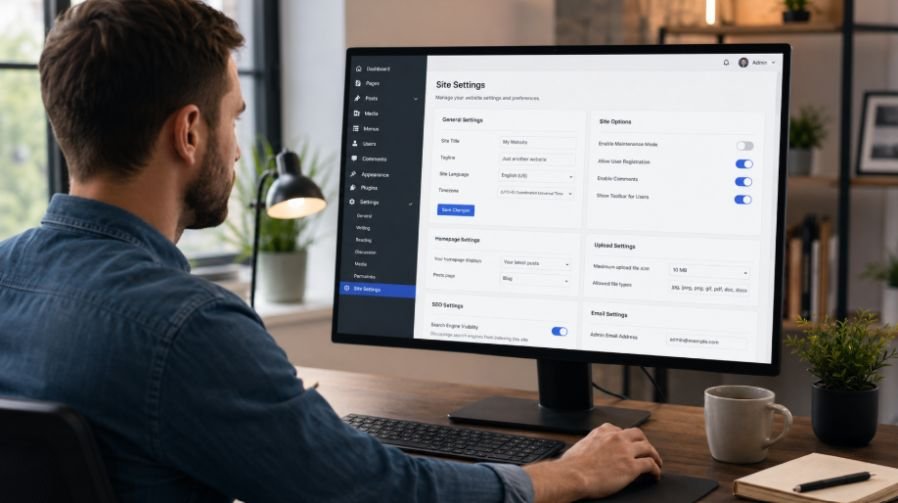
On the left sidebar, click Privacy and security, then Site settings. This section lets you control exactly what permissions individual websites have, including camera access, location permissions, and automated window scripts.
Step 3: Disable Unwanted Pop-ups
Scroll down to the Content section and click Pop-ups and redirects. This sub-menu contains the primary toggle for stopping web pages from launching external windows or automatically jumping to unknown promotional domains.
Step 4: Block Pop-up Options
Select Don’t allow sites to send pop-ups or use redirects. Choosing this setting instantly shuts down intrusive pop-up windows across all websites while allowing you to manually add trusted web apps to an exception list if needed.
Step 5: Open Intrusive Ad Controls
Go back to the Site settings page, scroll to Additional content settings, and click Ads. This hidden menu specifically targets sites known for displaying abusive, flashing, or full-screen promotional layouts that ruin readability.
Step 6: Restrict Intrusive Ads Natively
Select Block ads on sites that show intrusive or misleading ads. Enabling this native protection shields your browser from predatory ad formats while maintaining compatibility with safe, standard web layouts.
Frequently Asked Questions
1. How do I permanently block ads on Google Chrome?
The best way to permanently block ads on Google Chrome involves combining Chrome’s native pop-up settings with a trusted Manifest V3 browser extension like uBlock Origin Lite or AdBlock. This setup continuously blocks banners, video promos, and pop-ups automatically.
2. How do I block all ads?
Blocking all ads requires utilizing a dedicated content blocker extension alongside network-level filtering rules like a private ad-blocking DNS provider. This multi-layered approach filters web page scripts, video ads, tracking tools, and pop-ups across all your active browser sessions.
3. How do you AdBlock in Chrome?
You can AdBlock in Chrome by navigating to the Chrome Web Store, searching for a compatible ad-blocking extension, clicking Add to Chrome, and pinning the extension icon to your browser toolbar for instant background protection.
4. How to block ads on Chrome Android?
To block ads on Chrome Android, open the mobile Chrome menu, navigate to Settings, select Site settings, and set Pop-ups and redirects to Blocked. For deeper filtering, configure a private DNS host like AdGuard under your Android system network settings.
Bye-Bye Banners: Enjoy a Faster Chrome Experience Today
Mastering how to block ads on chrome transforms your everyday internet browsing into a clean, lightning-fast experience. By configuring your built-in privacy settings and pairing them with a trusted extension, you eliminate intrusive pop-ups, guard your personal privacy, and save bandwidth. Take a few seconds to update your browser settings today to enjoy a smoother, completely distraction-free web session everywhere you go!