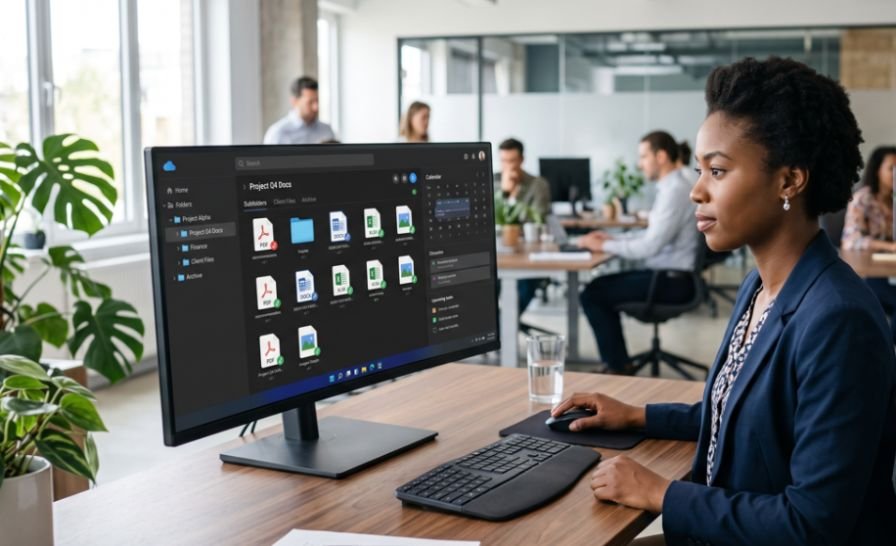
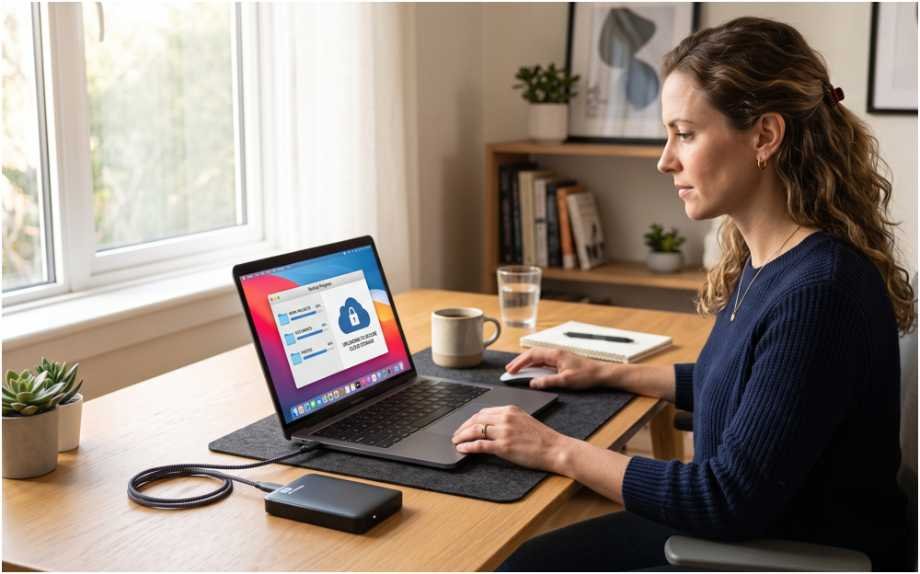
A failed drive can erase years of photos, tax records, schoolwork, or client files without warning. Learning how to back up computer files to cloud storage creates an off-device copy you can reach after loss, theft, damage, or replacement.
My rule is simple: a backup is not finished until I restore a test file.
Understand Cloud Backup Versus File Sync
Cloud storage keeps files on remote servers. Sync matches selected folders across devices. Backup prioritizes recovery after data loss.
The difference matters because sync can repeat edits, moves, and deletions. Google states that changes made in one synced location also appear in the other. Keep another copy on an external drive for irreplaceable files.
Compare Cloud Storage Options
Before choosing how to back up computer files to cloud storage, compare capacity, device support, and recovery tools.
| Service | Free storage | Best fit | Common setup |
| OneDrive | 5 GB | Windows users | Desktop, Documents, and Pictures backup |
| iCloud Drive | 5 GB | Mac and Apple users | Desktop and Documents syncing |
| Google Drive | 15 GB shared | Windows, Mac, and Google users | Selected-folder syncing |
| Dropbox Basic | 2 GB | Cross-platform access | Sync and computer backup controls |
Microsoft and Apple include 5 GB with free personal accounts. Google includes up to 15 GB shared across Drive, Gmail, and Photos. Dropbox Basic includes 2 GB.
How to Back Up Computer Files to Cloud Storage Step by Step
Step 1: Select Important Folders
Start with documents, photos, videos, financial records, creative work, and active projects. Skip temporary downloads, application caches, and replaceable installers.
Check each folder’s size. On Windows, select Properties. On Mac, choose Get Info. A sensible plan for how to back up computer files to cloud storage also leaves room for growth.
Step 2: Organize and Clean the Files
Create clear folders such as Documents, Photos, Finance, Work, and Archive. Remove duplicates and rename vague files before uploading.
Review private images too. Following how to remove metadata from photos before sharing can reduce location or device details stored inside image files.
Step 3: Secure the Account
Use a unique password and enable multifactor authentication. Save recovery codes outside the protected computer. Confirm your recovery email and phone number.
This security step is part of how to back up computer files to cloud storage safely, not an optional extra.
Step 4: Back Up Windows Folders With OneDrive

Select the OneDrive cloud icon in the Windows notification area. Open Settings, choose Sync and backup, and select Manage backup. Turn on Desktop, Documents, or Pictures, then select Start backup. Microsoft documents this same path.
Keep the computer awake and connected to power during the first upload.
Step 5: Back Up Mac Folders With iCloud Drive
Open the Apple menu and select System Settings. Choose your Apple Account, open iCloud, select Drive or iCloud Drive, and enable Desktop and Documents Folders.
Apple confirms that these folders become available through iCloud Drive on devices using the same account.
Step 6: Set Up Google Drive or Dropbox

Install the provider’s official desktop app and sign in. In Google Drive for desktop, open Preferences and add the folders you want synchronized. Google describes the app as a way to keep computer and cloud files matched.
In Dropbox, open Preferences, choose Backups, select Manage backups, choose the computer and folders, then start the backup.
Step 7: Let the First Upload Finish
Avoid moving selected folders during the initial upload. Watch for warning icons, paused syncing, permission errors, and storage-limit alerts.
Do not assume how to back up computer files to cloud storage worked because a folder name appears online. Confirm that the files inside it arrived.
Step 8: Run a Restore-First Test
Create a file named cloud-backup-test.txt in a protected folder. Add today’s date, save it, and wait for syncing to finish.
Open the provider’s website. Find the test file, download it elsewhere, and open it. Repeat with one photo, one PDF, and one larger file. This proves that the account, upload path, and restore process work.
Avoid Common Cloud Backup Mistakes

The biggest mistake is treating sync as an untouchable archive. A deletion may spread across connected devices. Review trash retention, recovery, and version history first.
Do not place one provider’s cloud folder inside another provider’s backup folder. Dropbox warns users to remove other cloud-provider folders from locations selected for Dropbox Backup.
Check storage monthly. Google’s 15 GB is shared with Gmail and Google Photos, so email or phone backups can consume space needed for computer files.
Verify Your Automatic Cloud Backup
Automatic syncing should run whenever protected files change. I recommend a monthly browser check and a quarterly restore test. Review failed uploads, recovery details, storage usage, and random files.
Repeat how to back up computer files to cloud storage after replacing a computer, reorganizing folders, changing providers, or connecting a new external drive.
Frequently Asked Questions
1. Can I back up my entire computer to cloud storage?
Most consumer services protect selected folders, not the operating system, installed programs, and every system setting.
2. How long does a cloud backup take?
The first upload may take hours or days, depending on file size, upload speed, and service limits.
3. How do I back up computer files to cloud storage automatically?
The simplest how to back up computer files to cloud storage setup uses the provider’s desktop app, selected folders, and continuous syncing.
4. Is cloud storage safe for important documents?
Use multifactor authentication, a strong password, tested restores, and a second independent copy for critical files.
Your Files Deserve Better Than “Probably Backed Up”
Knowing how to back up computer files to cloud storage only helps when you verify the result. Choose one service, protect valuable folders, finish the first upload, and complete the restore-first test today. Keep a second copy elsewhere because “I thought it synced” is not a recovery plan.