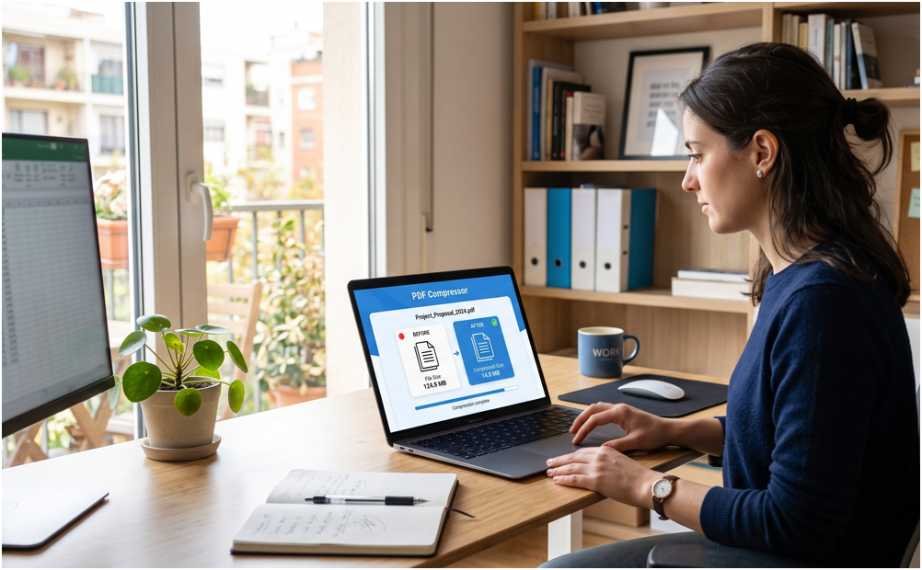
A 100 MB PDF should not force you to accept fuzzy text, damaged forms, or blurry screenshots. When I need to know how to compress large PDF files without losing quality, I start by checking what makes the file heavy.
The safest method is simple. Keep the original, use moderate compression, and inspect the result before sharing it. A scanned document needs different treatment from a text-based report.
What “Without Losing Quality” Really Means
True lossless compression preserves every piece of source data. Many PDF tools, however, reduce image resolution or apply JPEG compression. Adobe states that downsampling lowers image resolution and that JPEG optimization may permanently remove pixel data.
Therefore, how to compress large PDF files without losing quality usually means avoiding visible loss for the intended use. A PDF designed for email or screen reading needs less image detail than a commercial print file.
My rule is to define the destination first. Medium compression often suits reports, applications, handbooks, and online uploads. Print artwork, technical drawings, medical images, and legal exhibits need more conservative settings.
Quick PDF Compression Comparison
| Method | Best for | Start with | Main caution |
| Adobe Acrobat Online | Fast browser compression | Medium | Requires uploading the file |
| iLovePDF | Simple online reduction | Recommended | Extreme may soften images |
| Smallpdf | Quick web compression | Basic | Strong targets a smaller output |
| Adobe Acrobat Pro | Detailed professional control | Optimized PDF | Cleanup may affect features |
| PDFgear | Local desktop compression | Low or Medium | High lowers quality |
| Mac Preview | Built-in Mac compression | Optimize images for screen | Quartz filter may be aggressive |
Check What Is Making the PDF Large
Before deciding how to compress large PDF files without losing quality, identify the biggest elements. Common causes include high-resolution scans, full-page photos, embedded fonts, attachments, comments, metadata, and duplicate objects.
Adobe Acrobat Pro includes an Audit Space Usage report. It shows how much space images, fonts, forms, comments, and other elements use. On Windows, choose Menu > Save as Other > Optimized PDF > Audit Space Usage. On macOS, choose File > Save as Other > Optimized PDF.
This step prevents pointless changes. If images use most of the space, deleting metadata will achieve little. If attachments cause the problem, reducing image quality is unnecessary.
How To Compress Large PDF Files Without Losing Quality Online
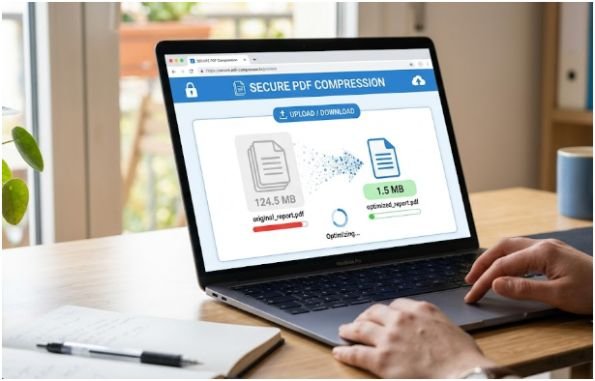
Online compressors work well for routine documents you are permitted to upload. I keep confidential contracts, financial records, health files, and identity documents offline unless an approved policy allows cloud processing.
Adobe Acrobat Online
Adobe’s web compressor reduces file size by compressing images, removing unnecessary items, and handling embedded fonts. Its current process is Convert > Compress a PDF, followed by selecting a compression level. The result is saved to Adobe cloud storage and can then be downloaded.
For how to compress large PDF files without losing quality, begin with Medium rather than High. Compare the result with the original before using a stronger setting.
iLovePDF and Smallpdf
iLovePDF offers Recommended, Extreme, and Less compression. Recommended is the sensible starting point for reports, handouts, and normal screen viewing.
Smallpdf currently provides Basic and Strong compression. Basic aims to balance size and quality, while Strong prioritizes a smaller file.
Upload a copy, not your only original. Save the result with a clear name, such as annual-report-compressed.pdf.
How To Compress Large PDF Files Without Losing Quality Offline
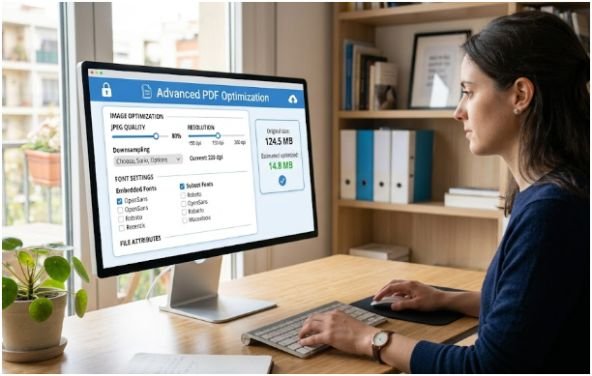
Desktop software gives me more control and avoids browser uploads. It is usually the better option for sensitive files or PDFs containing many pages.
Adobe Acrobat Pro
Open the PDF and choose Save as Other > Optimized PDF. Audit the file first, then review images, fonts, objects, user data, and cleanup options.
Adobe explains that JPEG and JPEG2000 suit photographs and gradual color changes. ZIP compression suits illustrations with flat colors.
Use cleanup settings carefully. Removing document tags harms accessibility and reflow. Flattening form fields makes them unusable. Deleting bookmarks, attachments, comments, or JavaScript may also change how the PDF works.
If recipients must complete the document, learn to create a fillable PDF form before flattening any fields.
PDFgear
PDFgear offers Low, Medium, and High compression. Its guide describes Low as high quality with a larger file, Medium as balanced, and High as smaller with lower quality.
For how to compress large PDF files without losing quality, choose Low first. Move to Medium only when the file remains above your limit.
How To Compress Large PDF Files Without Losing Quality on a Mac
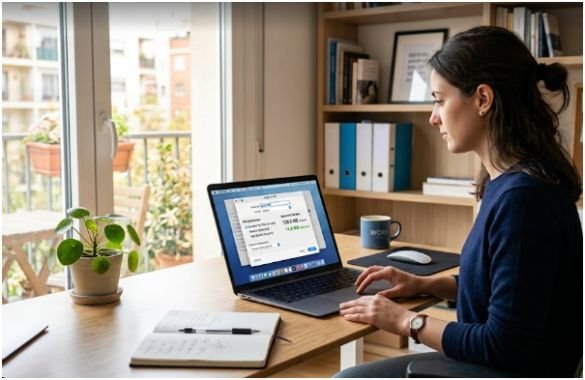
Preview can compress PDFs without extra software. Open the file, select File > Export, choose Reduce File Size under Quartz Filter, and save a new copy.
Apple warns that output quality may fall and that results vary. Preview also offers options to create a linearized PDF, optimize images for screen, or save images as JPEG.
I prefer Optimize Images for Screen before the broad Reduce File Size filter. I also save under a new filename because image-heavy pages may become softer.
Use the Quality-Budget Method
The fastest way to damage a PDF is to chase the smallest possible number. My quality-budget method keeps the process controlled.
First, identify the required maximum size. Next, find the elements consuming space. Apply the mildest setting likely to meet the limit. Finally, check critical pages before compressing again.
This method turns how to compress large PDF files without losing quality into a targeted task rather than a one-click gamble.
Worked Example
Imagine a 120 MB employee handbook with 80 pages. Seventy pages contain selectable text and simple graphics. Ten pages contain full-page photographs.
I would preserve the original, apply moderate image optimization, and keep links, bookmarks, forms, and accessibility tags. If the result reaches 24 MB but the portal limit is 20 MB, I would reduce only the photo-heavy pages.
That decision protects text and document functions while targeting the true source of the size.
Check the Compressed PDF
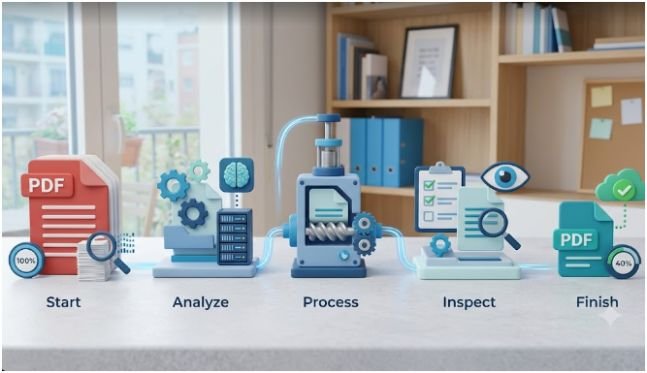
Open the original and compressed files side by side. Check the cover, smallest text, detailed charts, scanned signatures, photographs, and pages with fine lines.
Inspect at 200% zoom, then return to 100% for normal reading. Test search, copy and paste, links, bookmarks, comments, and form fields. Print one critical page when the document will be printed.
A final review is essential when learning how to compress large PDF files without losing quality. My four-point test is clarity, function, completeness, and size. The PDF must look clear, work correctly, retain every required element, and meet the delivery limit.
Avoid repeated lossy compression. Return to the original and use a better setting instead. Also avoid maximum compression when a small reduction is enough.
Frequently Asked Questions
1. How to compress large PDF files without losing quality for email?
Use Low, Medium, Recommended, or Basic compression first, then inspect small text and images before attaching the PDF.
2. How do I reduce a PDF below an upload limit?
Compress the original copy moderately, check its size, and target image-heavy pages if further reduction is needed.
3. Can I compress a scanned PDF without losing quality?
Visible quality can often be preserved with moderate image optimization and careful checks of small print and signatures.
4. What is the safest way to compress a confidential PDF?
Use approved offline desktop software and store the compressed copy locally instead of uploading it.
How To Compress Large PDF Files Without Losing Quality, Without the Drama
Knowing how to compress large PDF files without losing quality comes down to restraint. Start with a copy, diagnose what is heavy, and apply the lightest effective setting.
Do not celebrate a tiny file until its text, images, links, forms, and print output pass inspection. The best PDF is not the smallest. It is the smallest version that still does its job.