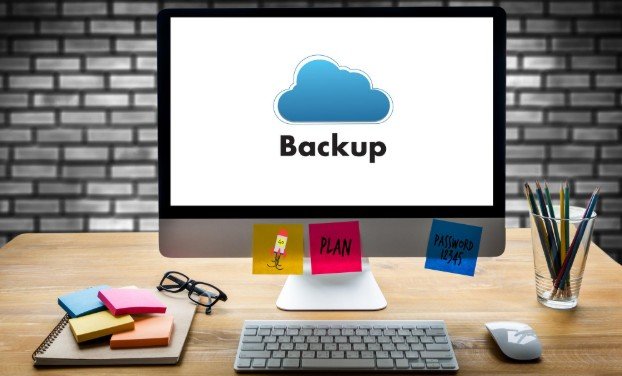
I have learned that website problems rarely arrive at a convenient time. A failed update, hacked account, damaged database, or hosting error can erase hours of work without warning. That is why I treat backups as routine website maintenance rather than an emergency task.
In this guide, I explain how to back up a WordPress site using practical methods that protect both the website files and the database.
What a Complete WordPress Backup Must Include
A complete backup contains two essential parts: the website files and the database.
Website files include WordPress core files, themes, plugins, uploaded images, documents, scripts, configuration files, and custom code. The wp-content folder is especially important because it usually contains the active themes, installed plugins, and media library.
The database stores posts, pages, comments, user accounts, settings, menus, form entries, product details, orders, bookings, and other structured content. Saving only the files will not preserve this information. Similarly, exporting only the database will not preserve images, themes, or plugins.
It is also helpful to document settings that a standard archive may miss. These can include DNS records, redirects, analytics IDs, email configurations, payment integrations, API connections, cron jobs, and content delivery network settings. Passwords and encryption keys should remain in a secure password manager rather than inside an unprotected backup folder.
Prepare the Website Before Creating a Backup

Before beginning, confirm that the hosting account has enough free storage. A server that is nearly full may create an incomplete archive without making the failure obvious.
Make sure you can access the WordPress dashboard, hosting control panel, database manager, and SFTP account. Use SFTP instead of unencrypted File Transfer Protocols whenever the hosting provider supports it. When using a plugin, review its recent updates, WordPress compatibility, support history, and current security status.
Avoid making major content changes while a full backup is running. For an active store, membership platform, or booking website, schedule the process during a quieter period or choose a service that supports incremental or real-time backups.
Use the Hosting Provider’s Backup Tool
Many managed WordPress hosting providers include automatic daily backups. This is often the easiest option because the host manages the schedule, storage, and restoration system.
Open the hosting dashboard and locate the backups, restore points, or website management area. Create a manual restore point before updating WordPress, changing a theme, installing a plugin, migrating the website, or editing important code.
Check how long the provider retains each copy. Some hosts keep daily backups for only a limited period. Confirm whether backups can be downloaded and whether restoring one copy will overwrite email, staging environments, or other account data.
Hosting backups are convenient, but they should not be the only protection. If the hosting account becomes compromised or unavailable, backups stored in the same account may also be inaccessible.
Use a WordPress Backup Plugin

A reputable backup plugin can schedule automatic copies and send them to remote storage.
After installing the plugin, choose whether to save the files, database, or both. A complete website copy should include both components. Connect the plugin to an offsite destination such as Google Drive, Dropbox, use of Amazon S3, or another independent storage service.
Set the frequency according to how often the website changes. A database containing frequent orders or form submissions may need to be copied more often than themes, plugins, and media files.
Run the first backup manually. Review the activity log for errors, verify that the remote copy arrived, and confirm that the archive includes the expected files. Set a retention limit so outdated copies do not consume unlimited storage.
Create a Backup Through cPanel
Websites hosted on cPanel can usually be copied through the Backup Wizard, File Manager, or both.
The Backup Wizard may allow you to create a full account archive or separate partial backups. A home directory backup normally captures the website files, while a separate MySQL database download preserves the database.
Download both copies to a secure device and transfer an additional copy to offsite storage. Use descriptive filenames containing the website name and date so matching file and database archives are easy to identify when you need to restore the website or fix a slow WordPress site.
A full cPanel archive may also include account settings and email data. However, some hosting providers require customers to contact support before restoring a complete account backup. Review the restoration process before depending on this method.
Back Up WordPress Manually

A manual backup provides greater control and can be useful when automated tools are unavailable.
Connect to the server through SFTP and download the full WordPress installation directory. Confirm that hidden files, including .htaccess, are included. Large websites may take time to download, so monitor the transfer for failed or skipped files.
Next, open phpMyAdmin and select the correct WordPress database. Choose the export option and download the database as an SQL file. Store the SQL file with the matching website-file archive.
Manual copying is useful before major technical changes, but it is easy to forget. It should support an automated backup system rather than replace one.
Choose the Right Backup Schedule
The best schedule depends on how frequently the website receives new information.
A small brochure website may need a weekly copy. An active blog or lead-generation website may require daily protection. A news site, membership platform, booking system, or online store may need hourly, incremental, or real-time backups.
Create an additional manual restore point before WordPress core updates, theme changes, plugin installations, database cleanup, migrations, redesigns, and develop and deploy custom models.
Retain multiple restore points instead of keeping only the newest copy. A recent backup may already contain malware, corrupted files, or an unnoticed content error.
Store Backups Away From the Website
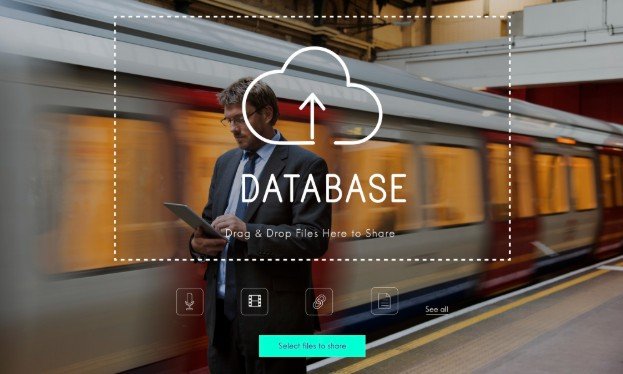
A strong strategy follows the 3-2-1 principle: maintain three copies of important data, use two storage types, and keep at least one copy offsite.
For example, retain one host-generated copy, one cloud-storage copy, and one encrypted local copy. Never leave the only backup inside the public website folder. An unauthorized visitor could potentially download it, while a server failure could delete it with the live website.
Protect backup accounts with unique passwords and multifactor authentication. Limit access to people who genuinely need it and follow a retention policy for deleting outdated archives.
Verify That the Backup Can Be Restored
A backup is valuable only when it works.
Confirm that the archive opens correctly, the SQL file is not empty, and recent pages, media, orders, form entries, and settings are present. Review backup logs for warnings or partially completed tasks.
The safest verification method is to restore the copy on a staging website or local environment. Test the homepage, internal pages, navigation, images, forms, login area, plugins, checkout process, and database-driven features.
Testing also reveals whether the backup instructions, passwords, and restoration tools are available to the people responsible for recovering the website.
Frequently Asked Questions
1. How often should I create a WordPress backup?
Create backups according to the rate at which the website changes. Weekly may be enough for a static website, while active stores, membership sites, and booking platforms may require daily or real-time protection.
2. What is the easiest way to learn how to back up a WordPress site?
The simplest option is usually the hosting provider’s built-in tool or a reputable plugin connected to remote cloud storage. The best choice depends on your hosting setup, technical experience, and recovery needs.
3. Should I back up WordPress before updating plugins?
Yes. Create a fresh restore point before changing plugins, themes, WordPress core files, PHP versions, or custom code. This gives you a safe version to restore if the update causes errors.
4. Can I store backups on the same server?
You can keep one convenient copy there, but it should never be the only one. Maintain at least one independent offsite copy in case the server becomes damaged, hacked, suspended, or unavailable.
Final Thoughts
I consider a backup successful only when it contains the files and database, exists outside the live server, and has been tested through a real restoration. Automation saves time, but verification creates confidence.
By combining hosting backups, remote storage, sensible scheduling, secure access, and multiple restore points, I can recover a website without depending on luck. The few minutes spent checking a backup today can prevent days of lost work, damaged customer trust, and expensive emergency repairs later.