

A photo can reveal more than the image on your screen. If you need to know how to remove metadata from photos before sharing, start by checking for GPS coordinates, timestamps, device details, captions, and camera settings.
My rule is simple: never assume the receiving app will protect you. Clean the file, verify the copy, and then share that version.
What Photo Metadata Can Reveal
Photo metadata is information stored with an image file. EXIF is the best-known format, though files may also contain IPTC or XMP fields. The current Camera & Imaging Products Association standard for digital-camera files is Exif 3.1.
A photo may contain its capture date, camera model, lens information, software, author details, and GPS coordinates. Apple warns that sharing a photo can include associated details such as its date, location, device, and captions.
Camera settings are usually low risk. Exact GPS coordinates can reveal a home, workplace, school, or routine. A timestamp may become sensitive when someone connects it with a recognizable place.
Check the Photo Before Removing Anything
Before learning how to remove metadata from photos before sharing, inspect the original. This helps you understand what information needs attention.
On an iPhone, open the image and swipe up or tap the information icon. Apple displays details such as the capture date, filename, device, camera settings, and location map when available.
On Android, open the image in Google Photos or your manufacturer’s Gallery app. Swipe up or tap the More or Details menu.
On Windows, right-click the file and open Properties, followed by Details. On a Mac, select the image in Photos and press Command-I. Apple’s Photos app can display the capture device, date, camera information, and location.
Save a separate cleaned copy rather than changing your only original. You may want its date, location, or camera settings later.
How to Remove Metadata on iPhone or iPad

The fastest method for how to remove metadata from photos before sharing on an iPhone sits inside the Share Sheet.
Strip Location While Sharing
Open Photos, select one or more images, and tap Share. Tap Options at the top of the Share Sheet. Turn off Location, keep All Photos Data disabled, tap Done, and select the app you want to use.
Apple says enabling All Photos Data sends the original file with its edit history and metadata through supported sharing methods. Leave this option disabled when privacy matters.
This change applies to that sharing action. It does not necessarily delete the location saved in your Photos library.
Remove the Saved Location
Open the photo and tap the More button. Choose Adjust Location, followed by No Location. Apple identifies this as the permanent method for removing the photo’s saved location metadata.
You can also prevent new camera photos from recording location data. Open Settings, Privacy & Security, Location Services, Camera, and choose Never. This may limit location-based organization inside Photos.
How to Remove Photo Metadata on Android

Android menus differ across Google Pixel, Samsung, Motorola, and other phones. That makes how to remove metadata from photos before sharing less uniform than the iPhone process.
Open Google Photos or your default Gallery app. Select the image and swipe up or tap More. If an editable or estimated location appears, choose Edit and Remove location. Some manufacturer Gallery apps label the command Delete location or Remove location data.
Google separates sharing inside Google Photos from sending a downloaded file through another service. You can control whether location details appear in each shared album, conversation, or link. However, a downloaded image sent through email may still contain the location originally recorded by the camera.
For a shared album, open the album and tap Share. Choose Options, turn Share photo locations off, and tap Done.
Google Photos may only let you remove certain estimated or manually added locations. When your phone cannot erase camera-written GPS data, transfer a copy to Windows or Mac and clean it there.
How to Remove Photo Metadata on Windows
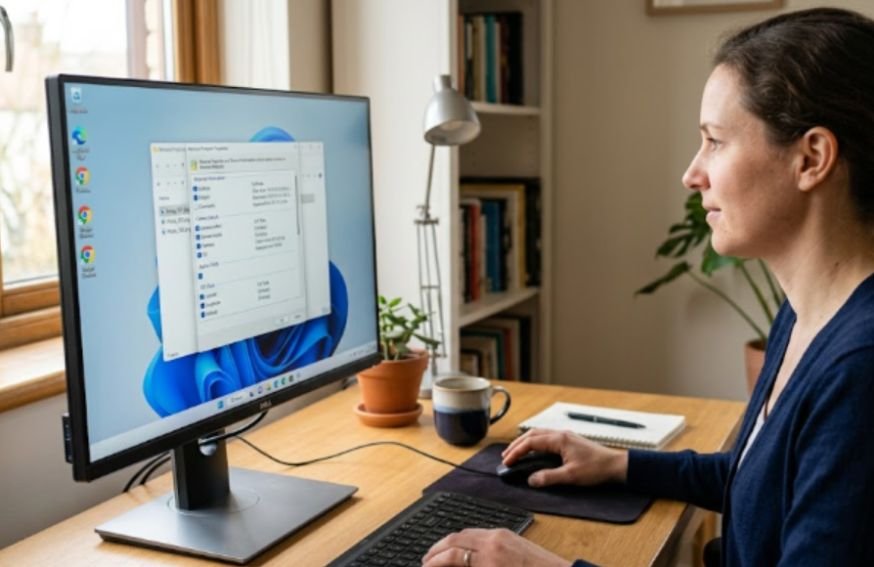
On Windows, how to remove metadata from photos before sharing can usually be handled through File Explorer.
Right-click the photo and select Properties. Open the Details tab, then click Remove Properties and Personal Information. Choose Create a copy with all possible properties removed. This protects your original while creating a cleaner version. You may also select individual fields to remove from the existing file.
Reopen the cleaned copy and review its Details tab. Check fields related to GPS, camera model, author, comments, tags, and capture date.
Windows may still display local information such as the folder path, computer, or file owner. These fields describe where the file sits on your computer and are not necessarily embedded inside the transferable image.
How to Remove Photo Metadata on a Mac
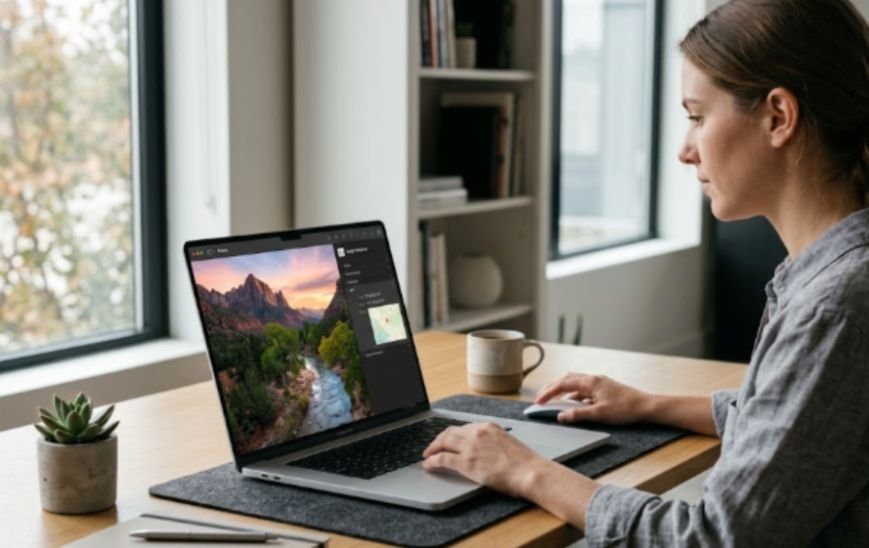
The Photos app provides the clearest Mac method for how to remove metadata from photos before sharing.
Open Photos and select the image or group of images. Choose Image, Location, and Hide Location. Apple also offers Revert to Original Location when you need to restore the saved location.
To inspect a standalone image, open it in Preview and choose Tools, Show Location Info. If that option appears unavailable, Preview did not find GPS information in the file.
Avoid exporting an Unmodified Original when you need a sanitized sharing copy. That export option is designed to preserve the original asset. Apple also allows IPTC information to be exported separately through an XMP sidecar file.
Is a Screenshot a Safe Shortcut?
A screenshot creates a new image instead of forwarding the original camera file. As a practical result, it normally does not carry the original photo’s GPS, camera model, lens, or shutter settings.
The screenshot can still receive new information, such as its creation time and device-generated file properties. Treat it as a quick workaround rather than guaranteed metadata sanitization.
Use this shortcut for one casual image, not an important full-resolution photograph. Screenshots may reduce quality and capture status bars, notifications, reflections, or screen edges. Crop the result carefully before sending it.
Bulk Cleaning With ExifTool or Online Tools
For folders containing many photos, ExifTool is faster than editing every file manually. The common command for removing all safely removable metadata from one image is:
exiftool -all= photo.jpg
ExifTool’s documentation uses tag assignments to write or delete metadata, while its official support forum confirms that the -all= command removes removable metadata.
Always test the command on copies. File formats handle metadata differently, and removing useful tags can affect organization or other image behavior.
Online metadata removers are convenient, but uploading a private image creates another privacy decision. I avoid browser tools for identification documents, children’s photos, medical images, private interiors, or safety-sensitive content.
The same cautious approach is useful when preparing other large files for secure sharing. Learning how to compress large PDF files without losing quality can reduce upload times and file sizes while keeping important text, images, and document details readable.
My Two-Layer Privacy Test
My original check uses two layers: inspect the file, then inspect the picture.
First, compare the cleaned copy’s information panel with the original. The habit is similar to comparing two documents for differences: check both versions side by side instead of trusting the save button.
Confirm that the location, camera, author, caption, and other sensitive fields have disappeared. Open the actual copy you plan to send rather than checking the original again by mistake.
Second, study the visible scene. Street signs, house numbers, badges, mail labels, vehicle plates, reflections, uniforms, and landmarks can reveal more than EXIF data.
Google specifically warns that viewers may infer a photo’s location from visible landmarks, even when location sharing is disabled.
That is why how to remove metadata from photos before sharing is only half the privacy task. Metadata tools cannot erase information photographed inside the image.
Clean the File, Then Hit Send
A polished photo is not automatically a private photo. I remove its location details, save a separate copy, inspect that copy, and scan the visible image before sharing.
Use built-in phone controls for quick posts. Use Windows, Mac, or ExifTool when you need a more complete cleanup.
The safest next step takes less than a minute. Test the process on one ordinary photo now, inspect the cleaned result, and make that verification part of your normal sharing routine.
Frequently Asked Questions
1. How do I remove GPS location from a photo before texting it?
Turn off Location in the iPhone Share Sheet, remove it through Android photo details, or text a verified cleaned copy.
2. Does emailing a photo remove EXIF metadata?
Do not assume so; downloaded photos sent as email attachments may preserve their original embedded camera and location data.
3. Do social media apps automatically remove photo metadata?
Processing differs by platform and sharing method, so remove sensitive metadata yourself before uploading or sending the file.
4. What is the safest way to remove metadata from photos before sharing?
Create a copy, remove its metadata, reopen that exact copy, and confirm that its sensitive fields are gone.