
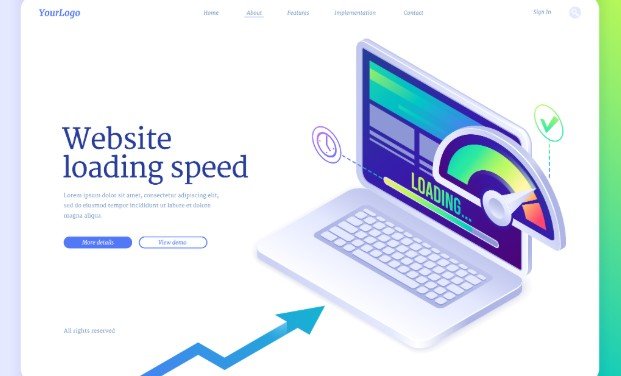
A slow website can weaken search visibility, frustrate visitors, reduce enquiries, and interrupt online sales. When I troubleshoot performance problems, I never begin by installing random optimization plugins.
I first measure the slowdown, identify the likely bottleneck, and change one thing at a time. That diagnosis-first process is the safest way to how to fix a slow WordPress site without creating new layout, checkout, or login problems.
Before making changes, create a complete backup and use a staging website for potentially risky adjustments. Record your current results so you can confirm whether each change produces a genuine improvement.
Test Your Website Before Changing Anything
Run performance tests on both mobile and desktop. Check the homepage, an important landing page, a blog post, and any product or checkout pages. A fast homepage does not prove that the rest of the website performs well.
Review Time to First Byte to understand how quickly the server begins responding. A high result may indicate weak hosting, missing caching, database delays, or heavy server-side processing.
Largest Contentful Paint measures how quickly the main visible element appears. Interaction to Next Paint evaluates how rapidly the page responds after a visitor clicks, taps, or types. Cumulative Layout Shift identifies content that unexpectedly moves during loading.
You should also check WordPress Site Health. It may reveal outdated software, configuration problems, scheduled-task issues, and opportunities to use persistent object caching.
Match the Symptom to the Likely Cause
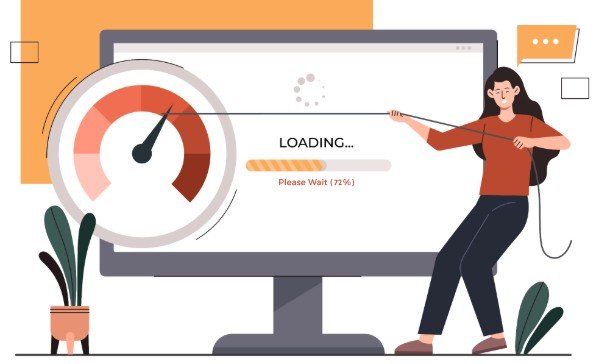
Different symptoms require different solutions. If every page is slow, investigate hosting, caching, PHP resources, and database performance. If only one page is affected, inspect its images, embedded media, forms, scripts, and page-builder sections.
A website that is fast for logged-out visitors but slow for administrators may have inefficient dashboard plugins, heavy background tasks, database problems, or insufficient PHP workers.
When performance declines during traffic spikes, the site may need stronger page caching, additional server resources, a content delivery network, or better protection against automated bot traffic.
Mobile-only slowdowns frequently result from oversized images, excessive JavaScript, complicated layouts, pop-ups, advertisements, and third-party widgets.
Improve Hosting, PHP, and Caching
Overcrowded or poorly configured hosting can delay every website request. Ask the hosting provider about CPU limits, memory, PHP workers, storage performance, server location, compression, page caching, and support for HTTP/2 or HTTP/3.
Use a current PHP version supported by WordPress, your theme, and active plugins. Test the change on staging, review error logs, and examine important features before applying it to the live website.
Full-page caching can significantly improve public pages because WordPress does not have to rebuild identical content for every visitor. Dynamic account, cart, checkout, and personalized pages must be excluded carefully.
Persistent object caching can help busy stores, membership websites, and installations that repeatedly request the same database information. However, it does not replace full-page caching.
Identify Slow Plugins and Themes

The number of installed plugins does not automatically determine performance. One inefficient plugin can produce more delay than several well-developed tools.
Pay attention to plugins that perform large database queries, contact external servers, scan files, create backups during busy periods, or load scripts on every page.
On a staging copy, disable suspected plugins one at a time and repeat the same test. Never deactivate payment, security, membership, or form plugins on a live website without a recovery plan.
Themes and page builders can also create large stylesheets, deeply nested layouts, unused widgets, animations, and oversized Document Object Models. Remove unnecessary sections and simplify complicated templates whenever possible.
Optimize Images, Videos, and Fonts
Resize images to the dimensions in which they will be displayed, compress them, and choose an appropriate modern file format. Avoid uploading an enormous photograph and displaying it as a small thumbnail.
Do not lazy-load the main image visible at the top of the page. Prioritize that image and lazy-load media located farther down. Add width and height attributes so the browser reserves space and prevents distracting layout movement.
Large videos should normally be delivered through a suitable video platform rather than basic website hosting. Reduce the number of font families and weights. Preload only essential font files and remove styles that the design does not use.
Reduce CSS, JavaScript, and External Scripts

Remove unused CSS and JavaScript, defer nonessential scripts, and load plugin files only on pages where they are required.
Apply minification, script-delay, or file-combination settings carefully. Aggressive optimization can break navigation menus, sliders, forms, consent banners, analytics, and checkout functions.
Third-party chat services, analytics tags, advertisements, social embeds, maps, heatmaps, and external forms can add considerable loading time. Keep only services that provide measurable value.
After every adjustment, clear the page, browser, object, and content delivery network caches. Test the website in a private browser window before making another change.
Clean the Database and Scheduled Tasks
A WordPress database can accumulate post revisions, expired transients, spam comments, abandoned plugin tables, orphaned metadata, and oversized autoloaded options. Back up the database before cleaning it, and never manually delete tables you do not recognize.
Autoloaded options are retrieved during many requests. Excessive autoloaded data can therefore slow the entire website. Identify the plugin or theme responsible before removing entries.
Review scheduled tasks as well. Backups, security scans, imports, email queues, and inventory updates should not all run during busy periods. Demanding websites may benefit from a reliable server-level schedule instead of relying entirely on traffic-triggered WP-Cron.
Fix a Slow WordPress Dashboard
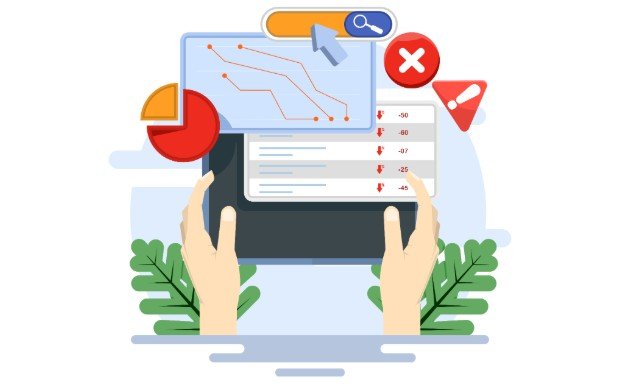
Public-page caching rarely improves logged-in administration screens. Examine dashboard widgets, activity logs, analytics panels, broken external requests, Heartbeat activity, database-heavy plugins, and server limits.
Online stores may also struggle with large order tables, expired sessions, complex product filters, inefficient reports, or too few PHP workers. Test the exact slow screen instead of assuming every part of the installation has the same problem, and review performance alongside the steps used to make a WordPress site secure.
Verify Every Improvement
Repeat the same performance test after each change. Use the same pages, testing location, and device settings so the results remain comparable.
Manually check menus, search, forms, account pages, checkout steps, mobile layouts, cookie controls, and analytics. A higher performance score has little value if an essential feature stops working.
Frequently Asked Questions
1. Why did my website suddenly become slow?
A plugin update, failed cache, traffic increase, background scan, hosting restriction, database problem, or third-party service outage may be responsible. Review what changed immediately before the slowdown appeared.
2. Can caching solve every WordPress performance problem?
No. Caching improves many public pages, but it cannot fully correct weak hosting, oversized images, heavy JavaScript, inefficient database queries, or poorly built dynamic features.
3. What is the safest way to learn how to fix a slow WordPress site?
Begin with a backup and baseline test. Diagnose the affected pages, use staging for risky changes, make one adjustment at a time, and repeat the test after every step.
4. Should I delete inactive plugins?
Inactive plugins do not normally run on public pages. However, unnecessary software should be deleted after confirming it is no longer needed. This reduces clutter and limits exposure to outdated code.
The Bottom Line
I treat website speed optimization as controlled troubleshooting rather than a race to install more tools. I measure the problem, separate server delays from frontend delays, prioritize high-impact changes, and verify every result.
By following this process, I can build a faster and more dependable website while protecting the forms, navigation, payments, and other functions visitors rely on.