A single changed word can alter a deadline, payment term, or approval requirement. When I need to know how to compare two documents for differences, I never rely on side-by-side reading alone. I run an automated comparison first, then review what each change means.
The right method depends on the file type. Word is strongest for editable drafts. Google Docs suits cloud collaboration. Adobe Acrobat Pro handles text-based and scanned PDFs. Cross-format tools help when the extensions do not match.
Quick Comparison: Choose the Right Document Diff Tool
The fastest answer to how to compare two documents for differences is to match the tool to the file type.
| Method | Best for | Detects | Main limitation |
| Microsoft Word Compare | DOC and DOCX revisions | Text, formatting, comments, and moved content | Best in desktop Word |
| Google Docs Compare | Two Google Docs files | Differences shown as suggested edits | Files must be Google Docs |
| Adobe Acrobat Pro | Regular or scanned PDFs | Text, images, layout, and page changes | Requires Acrobat Pro |
| Online comparison tool | Mixed formats or quick checks | Varies by platform | Privacy and format support vary |
| Manual side-by-side review | Short files and final checks | Visible differences | Slow and easy to misread |
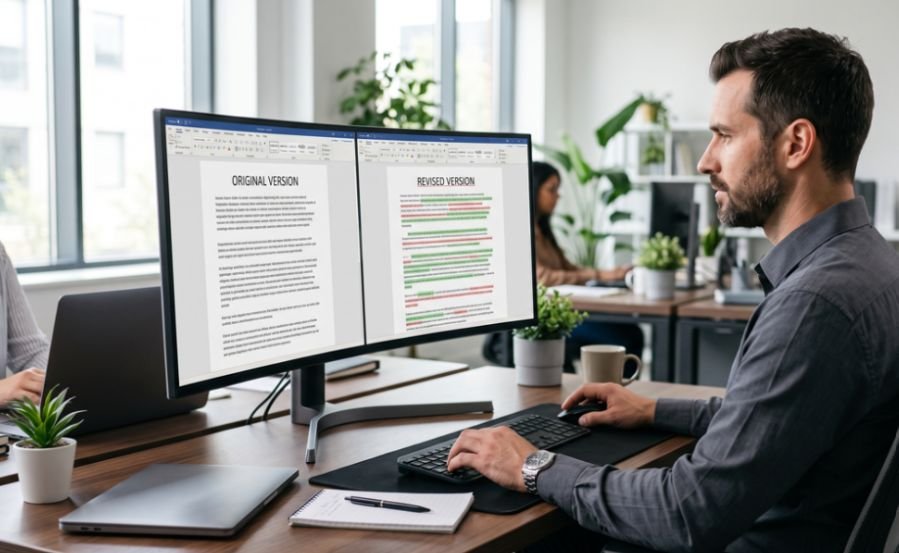
Word creates a third redline document. Google Docs generates a new file containing suggested edits. Acrobat produces a comparison report with selectable analysis modes.
Prepare Both Files Before Comparing Them
Before deciding how to compare two documents for differences, label one file “original” and the other “revised.” Keep untouched backups and record the version dates.
Using a clear file naming convention for digital documents also makes it easier to identify the correct versions, avoid duplicate drafts, and prevent the wrong files from being selected during comparison.
Use matching file formats when possible. Converting one draft to PDF can change spacing, page breaks, and fonts. Those shifts create visual noise and may hide the edits that matter.
Clear filenames also prevent version confusion. Names such as Proposal_Original.docx and Proposal_Revised.docx are much safer than Final, Final2, and Final_New.
How to Compare Two Documents for Differences in Word
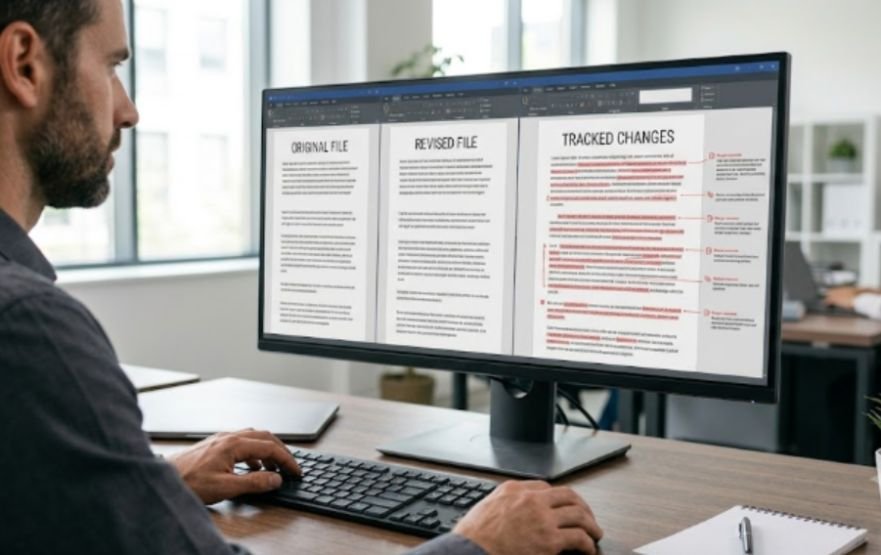
Microsoft Word offers the most detailed built-in option for editable business documents.
- Open Microsoft Word and choose Review.
- Select Compare, then choose the document comparison option.
- Place the earlier file under Original document.
- Place the newer file under Revised document.
- Select OK.
Word normally shows the results in a third document and leaves both source files unchanged. Changes from the revised copy appear as tracked revisions.
Adjust Text and Formatting Comparison Settings
Open the expanded comparison options before starting. Word can compare comments, formatting, and text changes. It can also display edits at either character or word level.
Use word-level review for general editing. Choose character-level review for prices, dates, reference numbers, product codes, and legal clauses.
For example, changing “$15,000” to “$150,000” involves only one character. However, that character can completely change a contract or budget.
Review the Redline in the Right Order
Check additions and deletions first. Then inspect tables, headers, footnotes, hyperlinks, comments, and formatting.
Do not accept every revision immediately. Review the changes according to their impact rather than their position in the document.
After reviewing the redline, open both files with View Side by Side and enable synchronous scrolling. Microsoft supports this view in current desktop Word versions.
This final visual check can reveal altered spacing, misplaced images, changed headings, or table formatting that looks acceptable in the revision list but wrong on the page.
How to Compare Two Documents for Differences in Google Docs
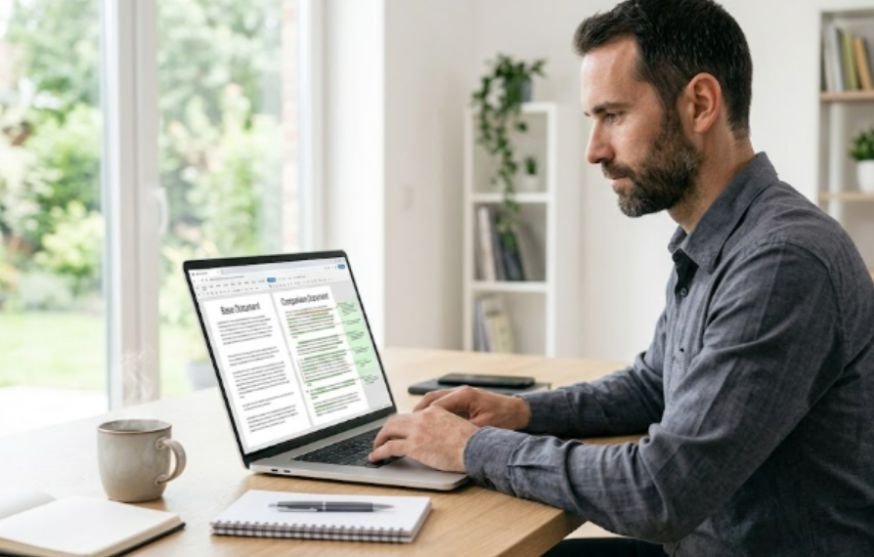
Google Docs works well when both versions already live in Google Drive.
Open the base document and select Tools > Compare documents. Choose the second Google Doc, add an attribution name, and select Compare.
Google generates a new document with the differences presented as suggested edits. Owners and users with edit access can use the comparison feature.
An uploaded DOCX file may need conversion to Google Docs format before Compare Documents becomes available.
The generated comparison file is useful for team reviews because users can accept, reject, and discuss individual edits without changing either source document.
To keep drafts, comments, research, and comparison results organized, learn to use browser tab groups for productivity.
How to Compare Two Documents for Differences in Adobe Acrobat
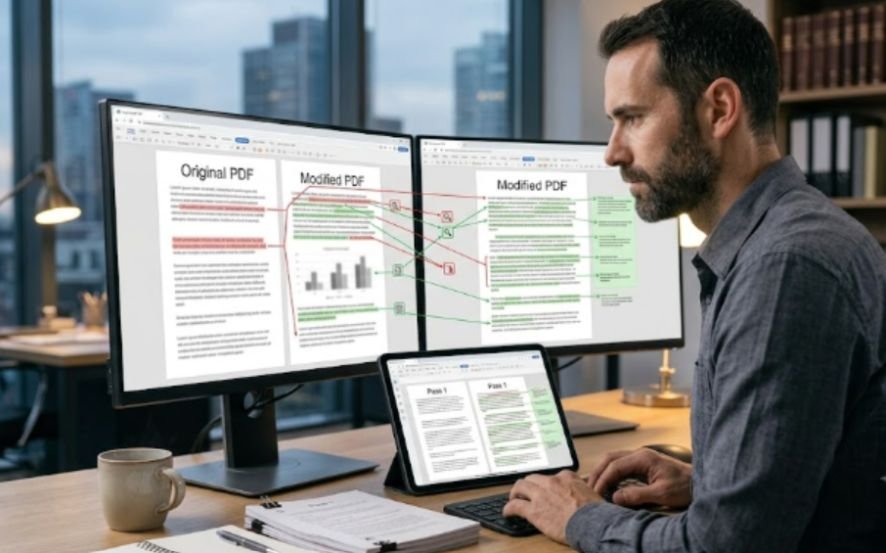
PDF comparison must account for wording, graphics, and page layout.
Open Adobe Acrobat Pro and select All tools > Compare files. Choose the old and new PDFs, then adjust the comparison settings.
Select Compare text only when images and graphic elements should be ignored. You can also limit the comparison to specific page ranges.
Acrobat can treat reports as flowing text, match presentation pages individually, or compare scanned documents through image-based analysis. Its side-by-side view uses highlighted bands to connect related changes across both files.
For scanned documents, inspect the visible pages after running the automated check. Crooked pages, shadows, faded text, or poor scan quality can create false differences.
A PDF comparison is especially valuable for contracts, brochures, reports, architectural drawings, and documents where visual placement matters.
How to Compare Two Documents for Differences Online
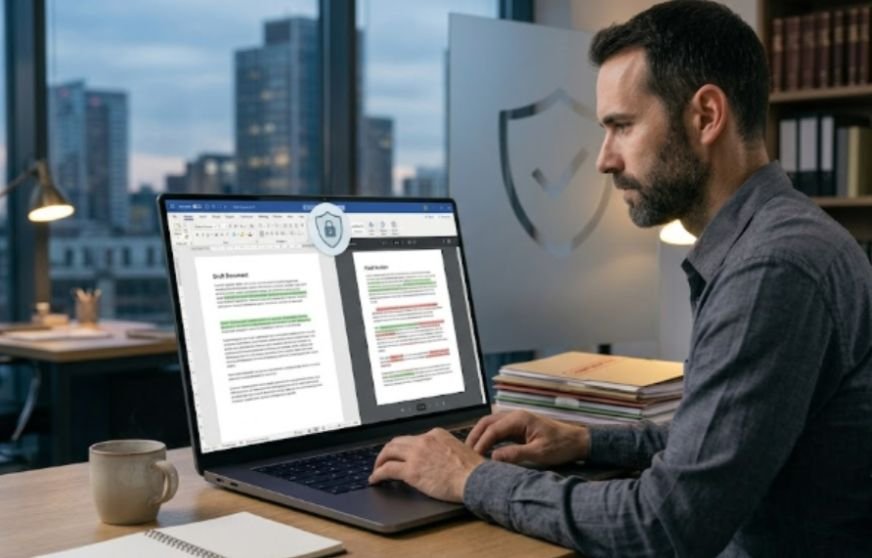
Online tools help when the files use different formats or you only need to compare pasted text.
Draftable documents support for Word, PDF, spreadsheet, presentation, and text files. Available comparison modes vary by format.
Its documentation also warns that files created by non-Microsoft software may require resaving in Microsoft Word for better compatibility.
Before choosing an online tool, check four things: supported formats, maximum file size, comparison type, and privacy terms.
A text-only tool may detect rewritten sentences but miss formatting changes. A visual tool may identify moved elements but produce extra noise when page layouts differ.
Do not upload confidential or regulated files without checking company policy and the platform’s privacy terms. Use approved desktop software for sensitive work.
Use My Two-Pass Method for High-Stakes Changes
Knowing how to compare two documents for differences is not enough when every change carries a different level of risk. I use a two-pass review.
Pass one finds mechanical changes. The software identifies insertions, deletions, moved content, comments, and formatting differences.
Pass two checks meaning. I prioritize changes involving money, dates, responsibilities, project scope, exceptions, termination terms, names, and approval language.
Consider this example:
Original: “Payment is due within 30 calendar days.”
Revised: “Payment is due within 30 business days.”
The comparison tool flags two words. The second pass reveals the real impact. Weekends and US federal holidays may now extend the payment period.
Another example involves changing “may terminate” to “must terminate.” The visual edit is small, but the obligation changes from optional to mandatory.
This two-pass method prevents minor formatting edits from receiving the same attention as revisions that create financial, legal, or operational consequences.
For legal, financial, or compliance documents, comparison software should support qualified professional review, not replace it.
Common Document Comparison Mistakes
A reliable process for how to compare two documents for differences also avoids a few common traps.
The most common error is reversing the original and revised files. Additions then appear as deletions, making the report harder to interpret.
Different conversion workflows can also flood the results with irrelevant layout changes. Compare matching formats whenever possible.
Reviewers frequently miss changes in tables, headers, footnotes, hyperlinks, comments, and text boxes. Important conditions often sit outside the main paragraphs.
Another mistake is assuming every highlighted edit carries equal importance. A font change rarely deserves the same attention as a revised deadline or payment amount.
Use manual reading to confirm automated results, not replace them.
Spot the Edit, Skip the Guesswork
Understanding how to compare two documents for differences comes down to matching the tool to the file.
Use Word for detailed editable redlines. Choose Google Docs for cloud collaboration. Use Acrobat Pro for PDFs, scanned pages, and layout-sensitive documents. Select an approved online tool when the file formats differ.
Run the automated comparison first. Review high-impact edits next. Finish with a short visual check.
Save the comparison report with clear filenames so the next reviewer knows exactly which versions were examined. Your eyes should make the final judgment, but software should do the tedious searching.
Frequently Asked Questions
1. How can I compare two Word documents and show changes?
Use Review > Compare, select the original and revised files, then examine the third document containing tracked changes.
2. How to compare two documents for differences without Word?
Use Google Docs, Acrobat Pro, or an approved online comparison tool, depending on the file formats.
3. How do I compare a PDF with a Word document?
Use a cross-format comparison tool, or convert both files to the same format to reduce layout-related differences.
4. What is the safest way to compare confidential documents?
Use approved offline software or an organization-controlled system, and keep both source documents unchanged.