
A static PDF makes people print, write, scan, and resend a document. That extra work is avoidable. Once you know how to create a fillable PDF form for free, you can add text boxes, checkboxes, radio buttons, dropdowns, and signature areas to an ordinary PDF.
I get better results by treating form creation as two jobs. First, I build a clean layout. Then I add the interactive layer. This approach keeps fields aligned and makes later edits easier.
Free PDF Form Creation Methods Compared
| Method | Best for | Free-use detail | Main limitation |
| PDFgear | Fast, basic forms | Provider states no sign-up or watermark | Complex layouts need testing |
| Sejda | Occasional browser editing | Free within published limits | Limits may affect larger projects |
| Canva plus an editor | Branded forms | Free design and PDF export options | A second tool adds fields |
| Word or Google Docs plus an editor | Simple office forms | Easy PDF export | Blank lines remain static |
| Adobe Acrobat Pro | Advanced form controls | Paid creation tool | Not permanently free |
When deciding how to create a fillable PDF form for free, choose the simplest tool that supports your required fields. PDFgear says its creator supports text fields, checkboxes, radio buttons, and dropdowns without registration. Sejda publishes free task and file limits. Adobe states that interactive form creation uses the Prepare Form tool in Acrobat Pro.
How to Create a Fillable PDF Form for Free Online
For most one-page documents, a browser-based creator is the quickest option. This is the workflow I recommend for how to create a fillable PDF form for free without paid software.
Step 1: Build the Base Document
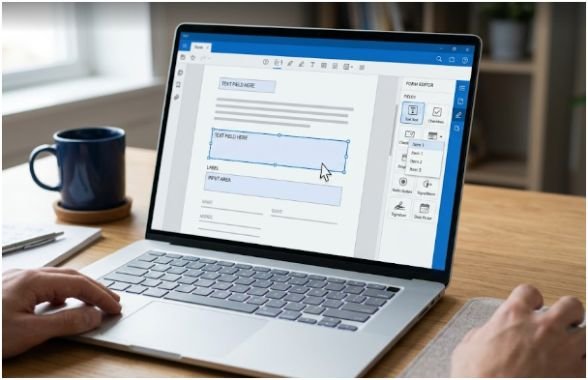
Create the visible page in Word, Google Docs, Canva, or another layout tool. Add headings, labels, instructions, and enough blank space for each answer.
Word can export a document as a PDF while preserving its intended formatting. Google Docs also supports downloading documents as PDF files.
I make answer areas wider than the sample text suggests. Real names, mailing addresses, and email addresses often need more room than expected.
Do not place a narrow line beside a label and assume it will be enough. Leave space for the interactive field that will eventually sit over it.
Step 2: Upload the PDF
Open a free form creator and upload the base file. PDFgear states that its browser creator needs no registration. Sejda says uploaded files are deleted after two hours and that free use has task, page, and file-size limits.
Avoid uploading tax records, medical information, banking details, or confidential contracts unless the service meets your security and privacy requirements.
Privacy checks belong in any reliable process for how to create a fillable PDF form for free. A free tool may be convenient, but convenience should not override your organization’s document-handling rules.
Step 3: Add the Correct Field Types
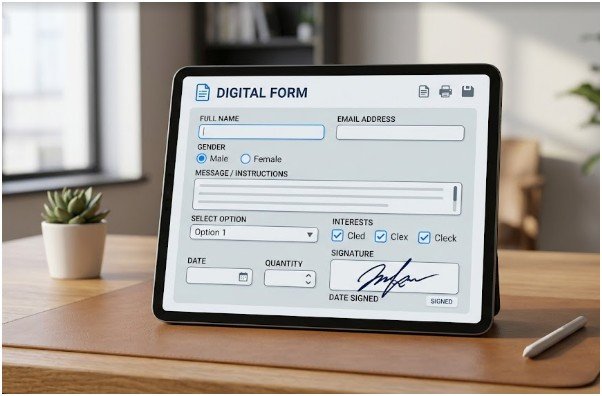
Use short text fields for names, dates, phone numbers, addresses, and email addresses. Use multiline fields for comments, explanations, or service requests.
Checkboxes work when several choices may apply. Radio buttons work when users must choose only one option. Adobe also describes radio buttons as controls designed to enforce a single selection.
Dropdowns save space when answers come from a fixed list. They work well for states, departments, appointment times, service types, or application categories.
Add a signature field only when the editor supports a genuine signature control or a compatible electronic-signing workflow. A plain text box labeled “Signature” may not meet every business or legal requirement.
Step 4: Configure Field Properties
The difference between a rough form and a reliable form often sits inside the field settings.
Give every field a clear internal name. Mark only essential questions as required. Enable multiline input where needed. Set a logical tab order that moves from the top left of the page toward the bottom right.
For one-choice radio buttons, place every option in the same group and assign each button a different value. A contact preference group, for example, might contain Email, Phone, and Text.
Do not reuse the same field name for unrelated text boxes. Some PDF viewers may repeat a value across every field that shares that name.
Step 5: Download and Test

Download the finished PDF and open it in a common viewer. Fill every field, save a completed copy, close it, and reopen it.
My three-pass check is simple:
- Fill the form using the mouse.
- Navigate through every control using the Tab key.
- Reopen the saved file and confirm the answers remain visible.
This test catches alignment problems, broken tab order, missing required settings, and data that disappears after saving.
Test longer answers as well. Enter an unusually long surname, email address, and street address. This shows whether text becomes hidden or spills outside the field.
How to Create a Fillable PDF Form for Free With Canva

Canva works well for branded applications, worksheets, checklists, intake forms, and client questionnaires. It supports downloading designs as PDF Standard or PDF Print. However, visual boxes and lines remain artwork until a PDF editor adds interactive fields.
Create the visual layout in Canva and leave clear spaces for answers. Export the design as a PDF and upload it to a free form creator. Then place interactive controls over the visual placeholders.
Keep decorative elements away from answer areas. Heavy backgrounds, patterns, and unusual fonts can make entered text harder to read.
This two-tool method takes an extra step, but it gives you more control over branding and presentation.
A Worked Example That Prevents Field Chaos
Suppose I need a one-page intake form for a home-service company. I would include the customer’s contact details, service type, preferred appointment time, property notes, consent, and signature.
Before opening the PDF editor, I would create a field map:
- Four short text fields for name, phone, email, and address
- One dropdown for service type
- One radio-button group for preferred contact method
- One multiline field for property notes
- One consent checkbox
- One signature field
This is my most useful answer to how to create a fillable PDF form for free without making the result feel amateur. Define the information you need first. Add the controls second.
The field map prevents duplicate questions, random placement, and unnecessary required fields. It also makes testing faster because you already know what every control should do.
Store the blank master separately from completed copies. Use a clear name such as client-intake-form-master.pdf.
Protect the source design and finished master by following how to back up computer files to cloud storage. This prevents one damaged or overwritten file from forcing you to rebuild the form.
Make Your Fillable PDF Accessible
A complete answer to how to create a fillable PDF form for free must cover accessibility.
Every field needs a visible label and an accessible name. W3C guidance says understandable labels are essential for accessible PDF form controls. Section508.gov also recommends logical keyboard navigation, clear instructions, and completion cues.
Place labels beside their fields. Identify required items with written text or an explained symbol, not color alone.
Keep the tab order consistent with the page’s visual reading order. A keyboard user should not jump randomly between the top and bottom of the form.
Place instructions before complex groups. For example, tell users to select only one answer before presenting a radio-button section.
Accessibility is especially relevant to US federal agencies, government contractors, and organizations covered by formal accessibility requirements. However, these practices improve usability for every audience.
Mistakes That Make a Free PDF Form Fail
Do not assume that exported blank lines are already fillable. Word, Google Docs, and Canva can create the visual layout, but a PDF form editor must add interactive controls.
Do not use checkboxes when only one answer should be allowed. Use grouped radio buttons instead.
Do not skip the save-and-reopen test. A form that accepts typing but loses the answers after saving is not ready to distribute.
Avoid making every question mandatory. Excessive required fields frustrate users and may collect information your business does not need.
Do not flatten the blank master. Flattening removes or locks interactive content. Keep an editable master and flatten only completed copies when your workflow requires it.
Your Form Is Free—It Should Not Feel Cheap
Learning how to create a fillable PDF form for free is not about finding one magic button. Build a clean page, add purposeful fields, configure them carefully, and test the saved result.
Start with a one-page document. Run the fill-tab-reopen check before sharing it with customers, employees, tenants, or applicants.
A good form should feel almost boring to complete. The labels are obvious, the fields behave correctly, and users never have to wonder where to click.
That is not boring design. That is a form doing its job.
Frequently Asked Questions
1. Can I learn how to create a fillable PDF form for free without Acrobat?
Yes. Free online creators can add interactive fields, although their limits and privacy terms vary.
2. How do I create a fillable PDF from Word for free?
Design the layout in Word, export it as a PDF, and add interactive fields with a free PDF form creator.
3. Can I make a fillable PDF in Google Docs?
Google Docs can create and export the layout, but a separate PDF editor must add true interactive fields.
4. What is the easiest way to create a fillable PDF form for free?
Prepare a one-page PDF, add fields in a browser-based creator, download it, and run the fill-tab-reopen test.