
Hitting a sudden file size error while trying to send a quick video clip ruins your workflow fast. Standard inbox providers capped attachment sizes years ago, making uncompressed phone recordings almost impossible to send directly. Modern apps and cloud platforms make shrinking video clips fast, simple, and completely free of technical headaches.
Key Takeaways
- Major email services cap attachments at 20MB to 25MB total.
- Reducing resolution to 720p drastically lowers overall file weight.
- Exporting clips in H.264 MP4 format ensures maximum playability.
- Web compressor tools shrink files fast without software downloads.
- Cloud sharing links bypass direct email attachment limits completely.
Understanding Size Limits Across Popular Inboxes

Every major email provider enforces strict file size caps to keep their servers running smoothly. Gmail and Yahoo Mail cap total email attachments at 25 MB, while Microsoft Outlook and Apple Mail limit transfers to 20 MB. A short 4K clip shot on your smartphone can easily exceed 200 MB per minute, making uncompressed delivery impossible.
Shrinking a clip involves balancing visual clarity against raw file size. Compressing video resolution to 720p or 480p and choosing efficient export presets makes your file lightweight while keeping visuals clear on phone and laptop screens.
| Device / Platform | Quick Method |
| iPhone / iOS | Use the Photos app to trim the video or compress it using the Files app (ZIP). |
| Android | Use Google Photos export settings to reduce video size. |
| Windows PC | Compress videos using the native Clipchamp app or create a ZIP folder. |
| Mac (macOS) | Export the video in 720p or 480p using QuickTime Player. |
Simple Methods to Shrink Video Files Online
Online video compressor platforms offer the quickest path to reducing file size without installing editing software.
Before using a browser-based tool, learning how to block ads on Chrome can help reduce distracting pop-ups and misleading download buttons on ad-heavy converter websites.
Uploading Files to Modern Web Tools
Start by opening your browser and choosing a reliable web tool like FreeConvert, Compress2Go, or Clideo. Drag and drop your MP4 or MOV file straight into the upload interface to begin processing.
Tweaking Resolution and Bitrate Settings
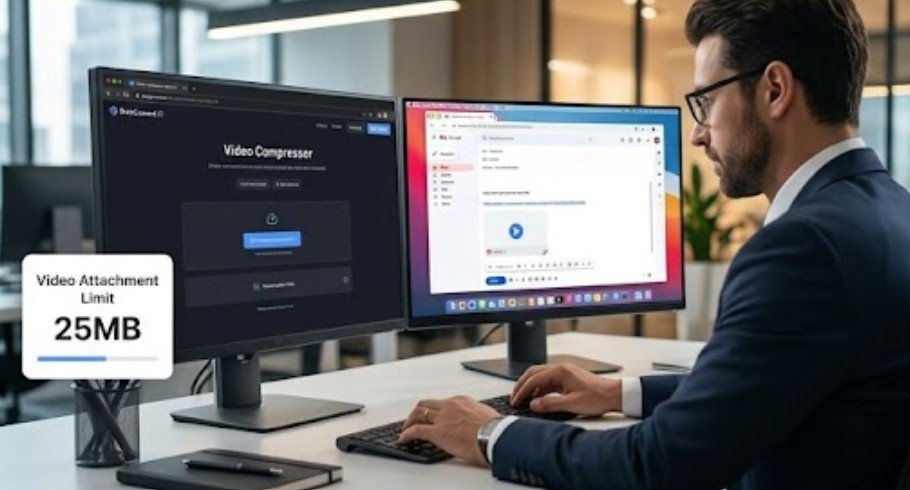
Navigate to the tool setting menu to customize your output specs. Set your target video resolution to 720p and select the universal H.264 MP4 format to ensure your recipient can open the file easily.
Saving Your Compressed Video File
Check the estimated output size displayed on your screen to ensure it falls safely under the 25 MB inbox limit. Click the export button, let the cloud processor render your file, and download the smaller video directly to your computer.
Reducing File Size Across Phones and Computers
Built-in operating system options allow you to trim and compress video clips natively across iOS, Android, macOS, and Windows.
Understanding what is responsive web design also helps when choosing browser-based compression tools, since a responsive interface makes upload controls, preview windows, and export settings easier to use across phones, tablets, and desktop screens.
Quick Adjustments on Mobile Phones
Smartphones capture high-definition footage by default, which creates massive files. On iPhones, open the Photos app to trim unnecessary seconds off your clip, or save it to Files and hold the icon to choose the native Zip option. On Android devices, open Google Photos, select Edit, and lower the export quality setting before saving your new file copy.
Fast Compression Options for Computers
Desktop operating systems include built-in tools for fast file reduction. Windows users can right-click any video, pick Send To, and select Compressed folder to reduce overall weight immediately. Mac users can open clips in QuickTime Player, choose Export As from the File menu, and select 720p or 480p to generate a lightweight version in seconds.
Alternative Solutions for Oversized Video Files
When a video stays too large even after heavy compression, alternative delivery methods keep your project moving forward.
Sending Shared Links via Cloud Storage
Cloud services allow you to bypass email attachment limits entirely. Upload your original video directly to Google Drive, Dropbox, or OneDrive, then adjust the access settings to allow view permissions. Copy the shareable link and paste it into your message body so your recipient can watch or download the full-resolution video file without hitting inbox file caps.
Converting Short Clips into GIFs
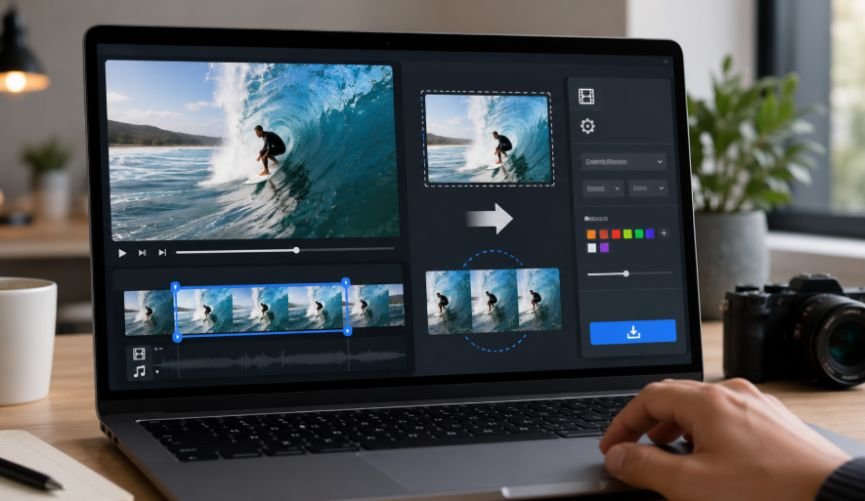
For short 5-second recordings or screen captures, converting your video into an animated GIF file removes audio data and reduces file weight. Web conversion tools turn your MP4 into an embedded visual asset that plays directly inside your email message body without requiring separate video player downloads.
How to Compress Video for Email Step by Step
Following a structured compression routine ensures your exported file stays clear while easily sneaking past email file size limits.
- First, check your recipient’s inbox provider so you know whether your target file size needs to stay under 20 MB or 25 MB. To fit a video in an email, keep the file size under 25 MB (the limit for Gmail, Yahoo, and Outlook). Use a free online tool like FreeConvert, Compress2Go, or Clideo. For optimal results, set the resolution to 720p and the format to H.264 MP4.
- Alternatively, upload the video to cloud storage (like Google Drive or Dropbox) and paste the shareable link in the email instead of attaching the file directly. For a visual step-by-step tutorial on how to use third-party apps to compress videos right from your phone, open your app store, download a mobile compressor app, load your video, and pick the email preset to export a lightweight file instantly.
Frequently Asked Questions
1. How do I reduce the MB size of my video?
You can lower the MB size of your video by lowering its resolution to 720p, reducing the bitrate, or converting the file into a compressed MP4 format using an online editor or built-in desktop app.
2. How do I send a 200 MB video on email?
To send a 200 MB video file through email, upload the file directly to Google Drive or Dropbox, copy the shareable link, and paste that link into your email message instead of adding a raw attachment.
3. How do I compress a file that is too large to email?
Compress a large file by uploading it to a free online compression tool like FreeConvert or Clideo, adjusting the target output size under 25 MB, or placing the file inside a zipped folder on your desktop.
4. How do I compress video for email on my phone?
Open a browser app on your mobile phone, navigate to a free web compressor, upload your video, select a 720p export setting, and save the compressed MP4 clip directly back to your device camera roll.
Master Video Delivery Today!
Learning how to compress video for email eliminates frustration and keeps your everyday digital communications moving smoothly. Whether you shrink clips using web compression platforms, adjust settings natively on your smartphone, or share direct cloud storage links, delivering video content through email is fast and simple. Try these easy compression methods today and send out your next video attachment without worrying about file size errors.